Blocky squares during motion
Likely causeLow bitrate or repeated compression
First moveReturn to the original, or reduce blocks if it is gone.
Diagnose the cause first, then use the least destructive fix. Start with the best source you have, compare the same frame, and process the full video only if the result helps.
DIRECT ANSWER
To decide how to fix pixelated video, first identify why it became blocky. Return to the original and re-export when possible. If it is gone, reduce blocks carefully or upscale only as needed. No tool can recover detail that was never recorded.
If you are searching for how to unpixelate a video, judge moving edges, faces, text, and gradients in the same frames. The phrase AI unpixelate describes estimated cleanup and enlargement—not a way to reveal hidden original pixels.
Reviewed by PixelatedFix · Updated July 26, 2026
SEE THE DIFFERENCE
Four problems can look like “pixelation,” but they do not have the same solution.
Likely causeLow bitrate or repeated compression
First moveReturn to the original, or reduce blocks if it is gone.
Likely causeLow source resolution stretched too far
First moveTry 1080p and inspect text and edges before 4K.
Likely causeLow light, high ISO, or compression fighting camera noise
First moveReduce noise carefully; compare faces and dark texture in motion.
Likely causeA damaged file, missing data, or a decoding problem
First moveReplace or recover the file instead of enhancing it.
VERIFIED BEFORE & AFTER
These real cases show how to repair a pixelated video without hiding the source. Each comparison keeps the same five-second input, timing, and crop. Play the motion, drag the divider, and inspect the named details instead of trusting a polished still image.
CASE 01
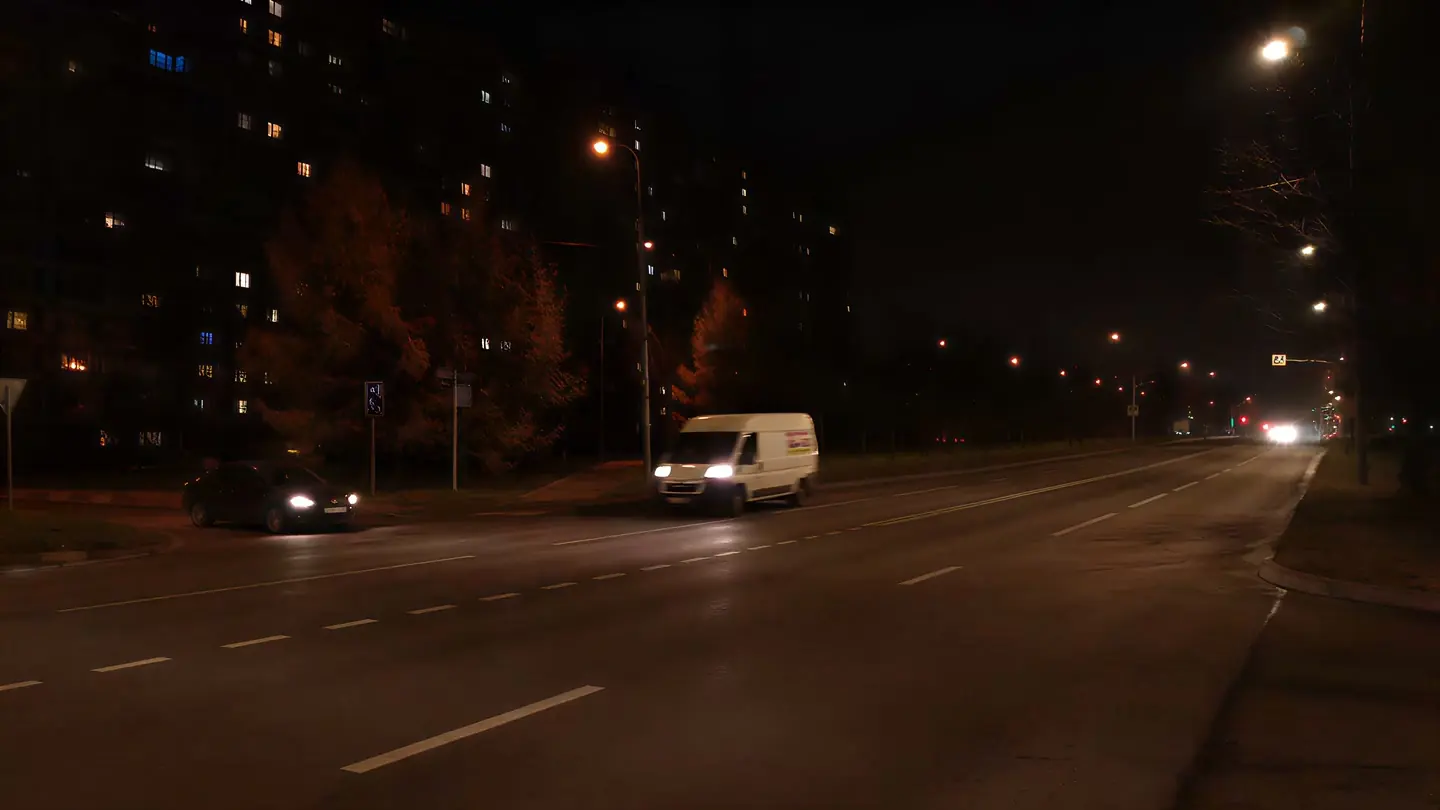
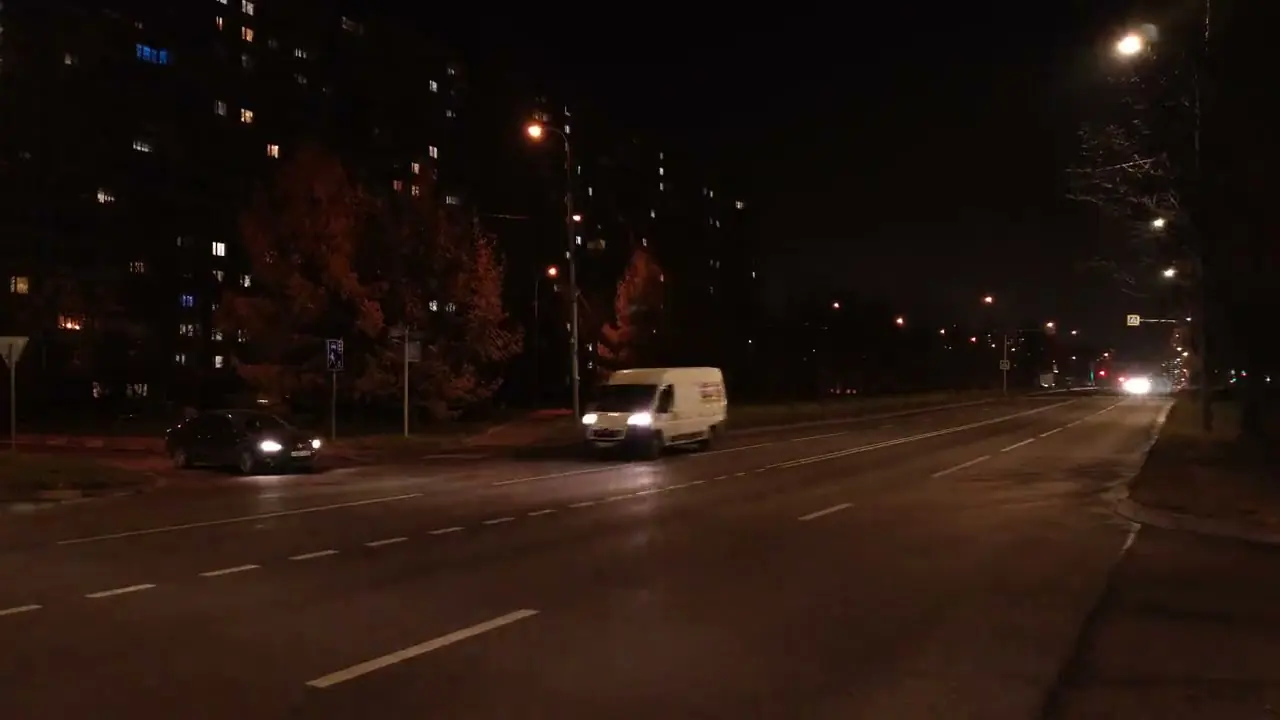
A real nighttime street clip enhanced to 4K with Pro Quality. Compare moving vehicles, road markings, small lights, and dark building edges.
Verified Pro Quality result · Same five-second input · Processing record checked
Night upscaling caseWeb playback rendition derived from the verified Pro 4K output. Review focus: Moving vehicles, road markings, and small lights.
CASE 02
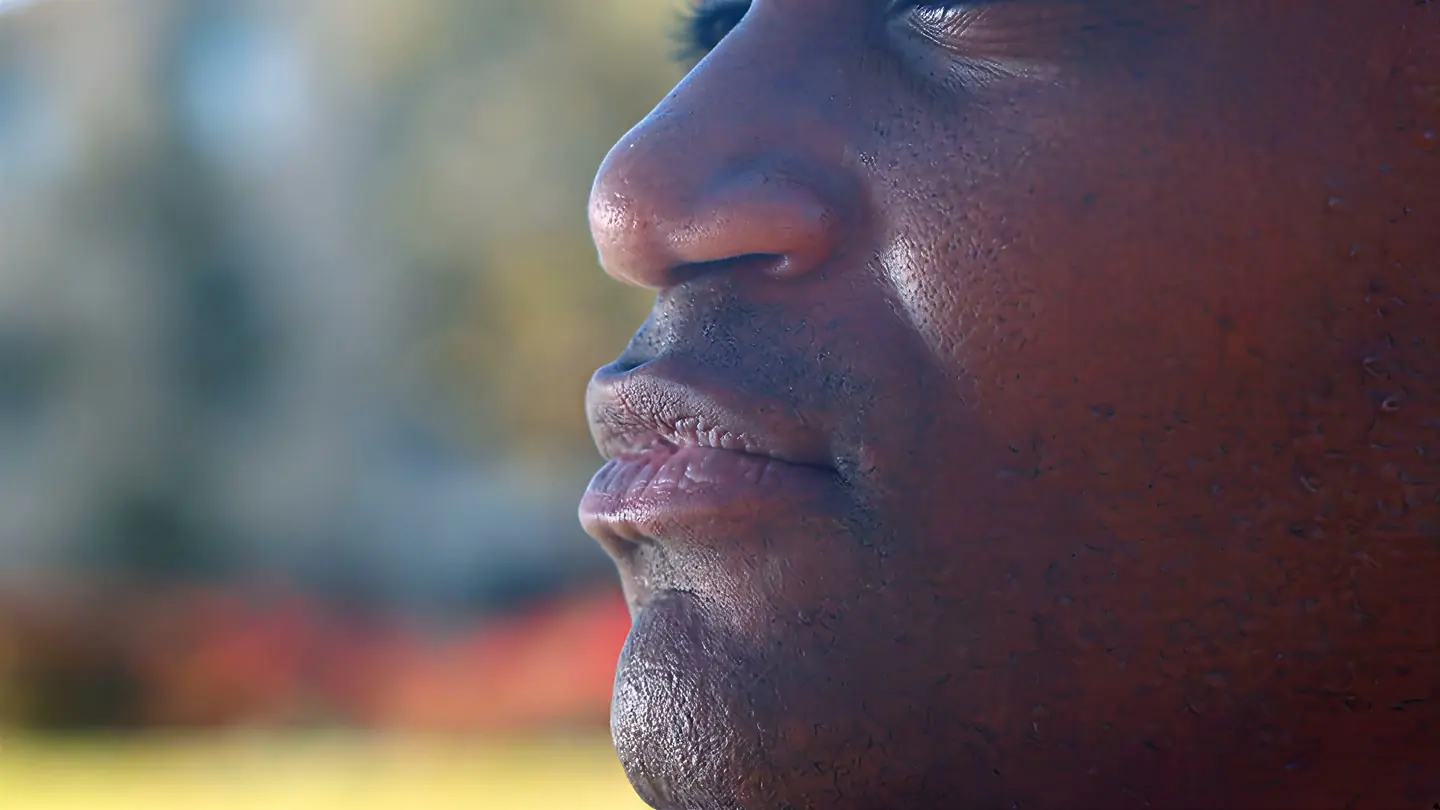
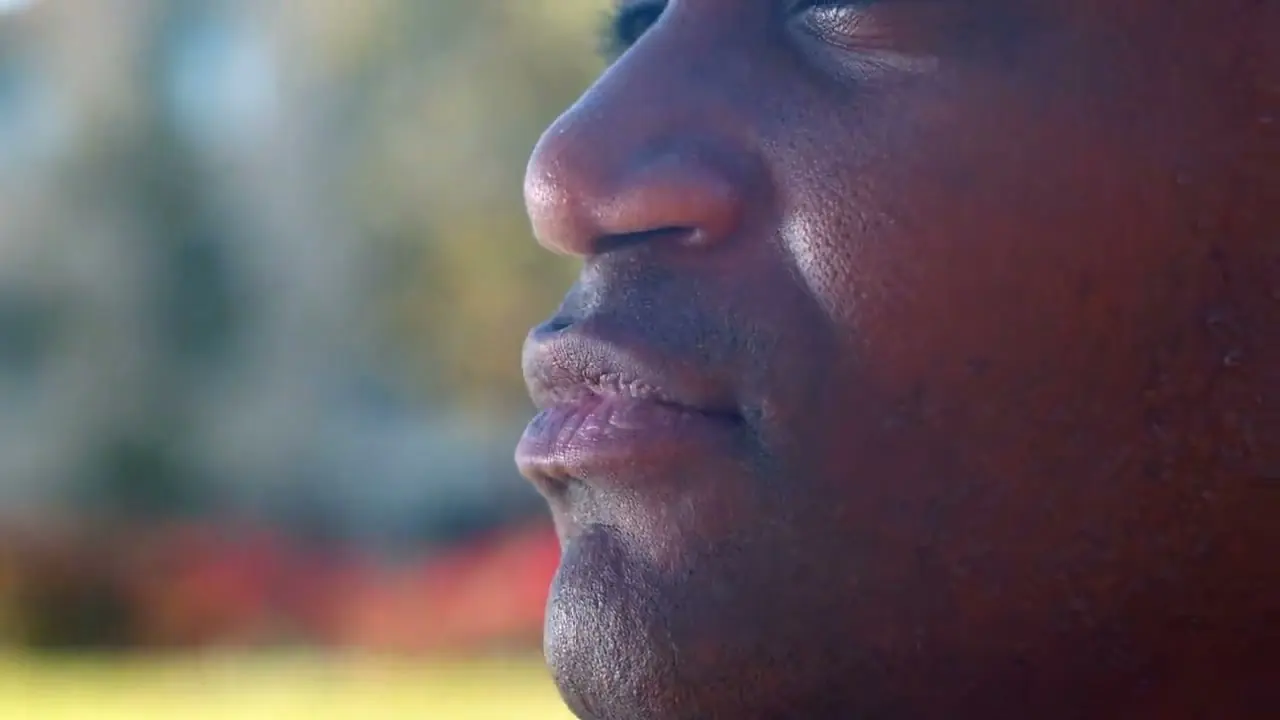
A real outdoor close-up enhanced to 4K with Pro Quality. Inspect skin texture, facial edges, eyelashes, and the softly focused background.
Verified Pro Quality result · Same five-second input · Processing record checked
Portrait upscaling caseWeb playback rendition derived from the verified Pro 4K output. Review focus: Skin texture, facial edges, and eyelashes.
CASE 03
A real five-second flower clip enhanced to 4K with Pro Quality. Compare the red petals, purple leaf edges, and fine texture in the same frames.
Verified Pro Quality result · Same five-second input · Processing record checked
Flower video caseWeb playback rendition derived from the verified Pro 4K output. Review focus: Petals, leaf edges, and texture.
CASE 04
A deliberately low-bitrate interface recording enhanced to 4K with Pro Quality. Compare text strokes, thin borders, and the moving shape.
Verified Pro Quality result · Same five-second input · Processing record checked
Interface upscaling caseWeb playback rendition derived from the verified Pro 4K output. Review focus: Small text, thin borders, and UI edges.
QUICK DIAGNOSIS
Pause on a difficult frame, then play it. A paused image reveals resolution and focus; motion reveals bitrate, compression, and file errors.
| What you see | Likely cause | Best next step | Tool fit |
|---|---|---|---|
| Blocks appear mainly in movement | Low bitrate or repeated encoding | Re-export once from the best source | Strong fit |
| The whole frame has enlarged pixels | Source resolution is too small | Upscale only to the size you need | Good fit |
| Dark areas crawl or shimmer | Camera noise plus compression | Test careful noise and block reduction | Check carefully |
| Fine text is already unreadable | The source did not capture enough detail | Try 1080p before any larger output | Limited fit |
| Playback freezes or shows green errors | The file is corrupt or incomplete | Recover or replace the file | Not a fit |
CAUSE BEFORE CURE
Before deciding how to fix pixelated video, find the earliest point where quality changed. That usually reveals whether you need a new export, a better source, a moderate upscale, or file recovery.
Complex motion needs enough data. When bitrate is too low, the encoder groups changing detail into visible blocks. A clean export from the original timeline is the best correction.
What to look forSquares around motion, water, foliage, smoke, or camera pans.
Messaging apps and social platforms often create smaller copies. Editing a downloaded copy stacks another lossy encode. Find the camera file, first export, or original-quality backup.
What to look forThe original is clean but a shared or downloaded copy is blocky.
A 360p or 480p clip may look fine in a small window but exposes large pixels on a modern player. Upscaling can clean edges; it cannot create native 1080p or 4K footage.
What to look forLarge soft pixels stay visible in a paused frame.
Missing data can cause green blocks, broken frames, or failed playback. Obtain another copy, recover the recording, or export again before enhancement.
What to look forThe same frame freezes or fails in multiple players.
SOURCE-FIRST WORKFLOW
Use this list when you need to know how to fix pixelated video without making it worse. Start at method one and stop as soon as a less destructive option solves the problem.
Use the earliest, highest-quality copy; every re-encode removes information.
You have the camera file, project, or original-quality backup.
Work from a copy and keep the original.
A clean timeline becomes blocky when export settings discard too much data.
Pixelation appeared after exporting a fast or detailed scene.
Match source settings, raise bitrate, and export once.
Scaling and frame conversion add interpolation and compression.
Project settings differ from the source.
Keep source frame rate and aspect ratio; enlarge only when required.
Re-uploading a social copy adds another lossy encode.
Your copy came from social media, messaging, or storage saver.
Request the original; otherwise avoid another encode before enhancement.
Block reduction softens square boundaries but does not recover camera detail.
The file plays but shows blocks around motion or gradients.
Reject results that erase faces, text, or texture.
A moderate upscale can help; larger output may expose false texture.
The readable source is smaller than its destination.
Try 1080p first; use 2K or 4K only when needed.
Enhancement cannot reconstruct missing frames; corruption needs recovery.
The file freezes or fails at the same point in several players.
Get a fresh copy or recover the file before enhancement.
ONLINE METHOD
Use the online workflow only after checking for a cleaner source and export. The comparison helps you decide before processing the complete video.
Verified 1280 × 720 to 3840 × 2160 · drag to compare
Use the original camera file, first export, or highest-quality copy you can find.
Inspect motion, faces, text, edges, and gradients for cleaner detail without halos or false texture.
Choose 1080p, 2K, or 4K when available and review the exact one-time total before payment.
SCENARIO GUIDES
Choose the platform, editor, device, or symptom that caused the visible quality loss.
HONEST LIMITS
AI enhancement can reduce visible blocks and make a readable source easier to watch. It cannot recreate exact information that the file never contained.
Visible compression blocks, enlarged low-resolution pixels, moderate softness from compression, and readable clips that have passed through a messaging or social-platform encode.
Fast movement, low-light faces, hair, foliage, tiny interface text, dense grain, strong sharpening, and sources that have already been encoded several times.
Missing frames, files that will not play, dead camera pixels, severe corruption, exact text that was never readable, or real detail the camera and source file never captured.
ONE-TIME PRICING
The free local check reads the video length and resolution on your device. If you continue, the exact one-time price depends on duration and selected output. There is no subscription, and the complete video is processed only after you accept the total.
See how full-video pricing worksCOMMON QUESTIONS
Clear answers about compression, missing detail, re-exporting, formats, audio, privacy, and payment.
No. It can reduce visible blocks and make edges look cleaner, but it cannot recover every original detail. Review the real matched Before and After examples before processing the full video.
It means using an AI model to reduce visible block boundaries and estimate cleaner-looking edges while enlarging a video. It does not reveal the exact pixels that were discarded by compression.
Most platforms compress uploads into smaller files. A low-quality source, repeated uploads, or a resolution mismatch can make blocky areas more visible.
Export again when the original project or camera file is available. Use an AI repair when the cleaner source is unavailable or the new export still needs a controlled upscale.
Accepted MP4, MOV, M4V, WebM, and MKV files keep their original timing and main audio track. We check that the finished video plays correctly before it is available to download.
No. The complete video stays on your device during the free video check. If you continue but do not purchase, a completed upload is scheduled for deletion within 30 minutes. Failed checks are scheduled for deletion within 5 minutes, and paid sources are removed after processing finishes. Completed results are temporary, so download yours promptly.
TRY YOUR OWN VIDEO
Choose the best available source. Use motion, a face, fine text, or a dark gradient to make the change easier to judge.