COMPARE FOUR STAGES
How to fix pixelated video in CapCut without mistaking the preview for the export
A timeline preview, a finished export, and an upload to another platform are different stages. Locate the first stage where the squares, softness, or lost detail appear.
- Timeline preview
A preview can be optimized for editing and is not the final export.
- Export resolution
Choose an available output that matches the project and source.
- Frame rate and bit rate
Keep a compatible frame rate and allocate enough data for motion.
- Local exported file
Review the saved video before sharing or uploading another copy.
| What you notice | Likely cause | First check |
|---|---|---|
| Imported clip is already blocky in the timeline | Low-resolution or previously compressed source | Re-import the earliest camera or editor original |
| Preview looks soft but the local export is clear | Preview performance setting or proxy behavior | Judge the saved export, not only the editing preview |
| Local export is smaller or softer than the project needs | Selected resolution, frame rate, or bit rate | Open export settings before rendering another copy |
| Fast motion turns to squares after export | Too little data for scene complexity | Compare bit rate and the original moving segment |
| Export is clear locally but poor after posting | Platform upload processing | Keep the local master and check the destination quality |
EXPORT ONCE, REVIEW ONCE
Fix pixelated video in CapCut with a controlled export check
Make one intentional export from the best project, then compare it locally. Re-exporting a downloaded social copy adds another generation without recovering the original detail.
- Inspect the imported source in motion
Before changing any setting, locate a hard scene with camera movement, foliage, dark gradients, skin, or small text. If it is already blocky, replace the import when a better copy exists.
- Check the project shape and crop
Do not enlarge a small clip until its important detail fills the frame. Keep the intended aspect ratio instead of adding unnecessary bars or a second crop.
- Open export settings before tapping Export
CapCut’s mobile guidance places the available resolution selector near Export. The available choices depend on the device, project, source media, region, and app version.
- Match resolution and frame rate to the real source
Do not choose 4K merely because it appears in a menu. Keep the recorded frame rate when possible, and choose the output size that the source and delivery actually need.
- Give complex scenes enough bit rate
CapCut states that a higher bit rate can preserve more quality in the final export. Use it as a controlled comparison, not a promise that a soft input becomes sharp.
- Review the saved local file before upload
Open the finished video outside the editor and compare the same timestamp with the source. Only then decide whether the remaining problem is a CapCut export, an online platform, or the source itself.
WHAT THE SETTINGS CHANGE
Resolution, frame rate, and bit rate have different jobs
These controls affect the delivered file differently. Treat them as export choices, not universal repair controls.
| Setting | What it changes | Do not assume |
|---|---|---|
| Resolution | The output pixel dimensions | A 4K frame creates native 4K detail from a 720p import |
| Frame rate | How many frames are delivered each second | Changing 30 fps to 60 fps recaptures motion that was never recorded |
| Bit rate | How much data can describe each second of video | More data repairs severe focus blur or a damaged source |
| Preview or proxy | Editing playback performance on supported workflows | What the preview shows is always the final export |
Why the local exported file is the deciding proof
CapCut’s support guidance distinguishes export settings from the preview and recommends checking the exported video on a high-resolution screen or external media player. That comparison separates editor performance from a defect that is truly baked into the delivered file.
When a platform is the last compression step
If the local result is clear but a YouTube upload is not, follow the separate YouTube blur diagnosis. Do not download that processed stream and use it as the next CapCut import.
USE THE RIGHT NEXT STEP
When CapCut settings are not the real problem
Some defects begin before editing. The honest solution may be to recover a better source, not to keep pushing export controls.
- Return to a better import when the source was already low resolution or visibly compressed.
- Check device and project requirements when the desired export option is unavailable.
- Check the destination platform when only the posted copy is soft or blocky.
- Use careful enhancement for compatible remaining compression or a small source.
- Keep expectations limited for severe missed focus, motion blur, and lost highlights.
For phone-source questions before editing, see the Android video source guide.
REAL BEFORE & AFTER
Judge a CapCut export on detail that compression exposes
Small interface text, dark motion, and fine edges make it easier to see whether a local export preserved useful detail. These real results are not presented as CapCut export tests.
CASE 01
Interface text: compressed 720p to Pro 4K
A deliberately low-bitrate interface recording enhanced to 4K with Pro Quality. Compare text strokes, thin borders, and the moving shape.
- Before
- 1280 × 720
- After
- 3840 × 2160
- Quality
- Pro Quality · 4K
- Look at
- Small text, thin borders, and UI edges
Verified Pro Quality result · Same five-second input · Processing record checked
Interface upscaling case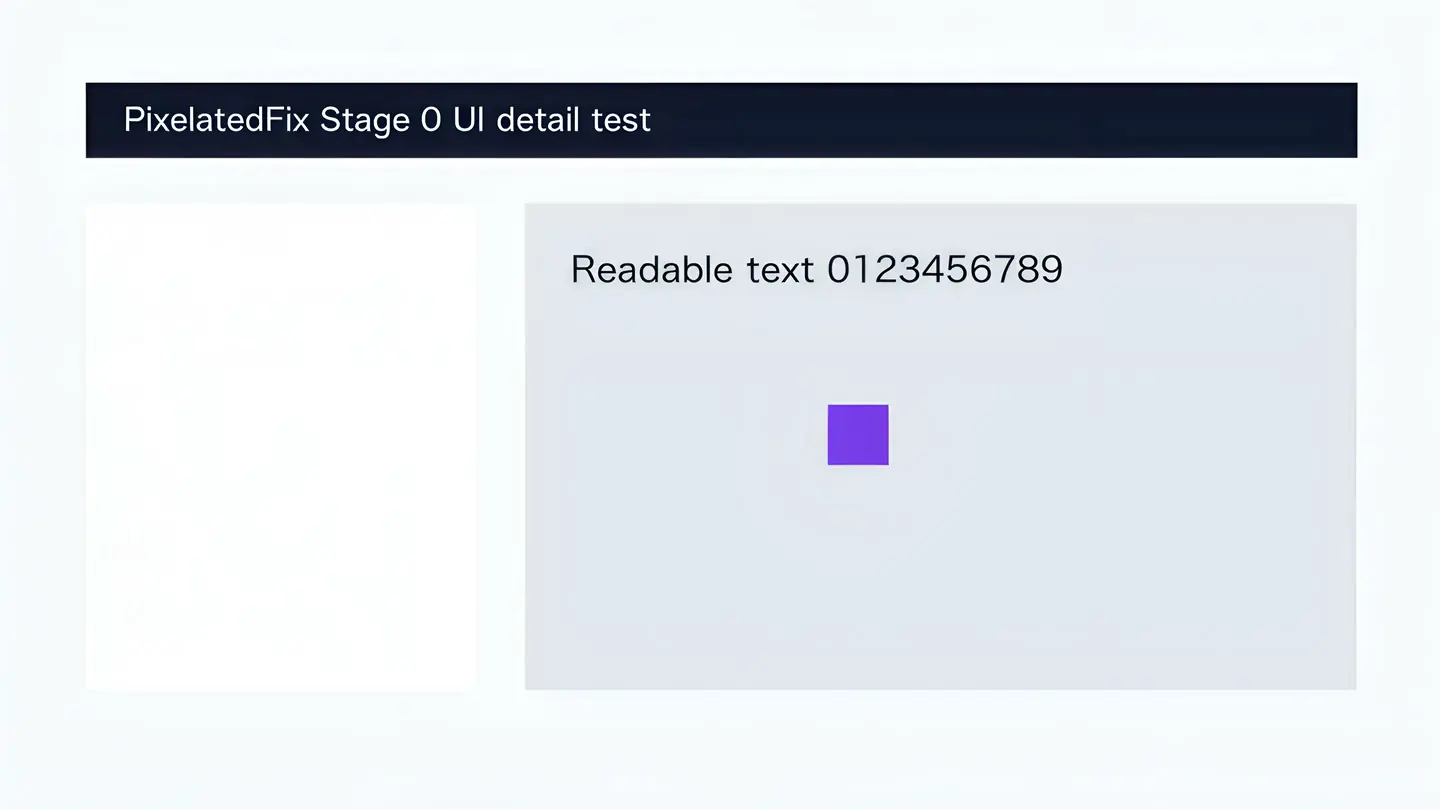
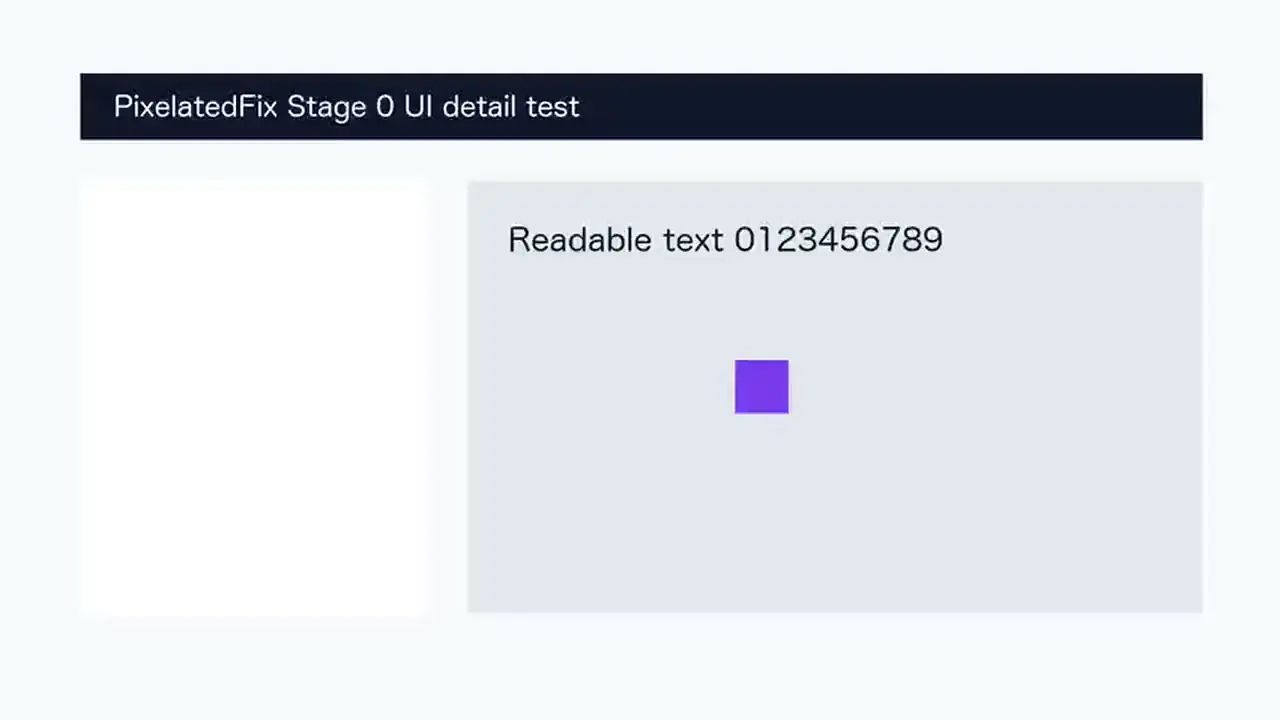
Web playback rendition derived from the verified Pro 4K output. Review focus: Small text, thin borders, and UI edges.
CASE 02
Night traffic: compressed 720p to Pro 4K
A real nighttime street clip enhanced to 4K with Pro Quality. Compare moving vehicles, road markings, small lights, and dark building edges.
- Before
- 1280 × 720
- After
- 3840 × 2160
- Quality
- Pro Quality · 4K
- Look at
- Moving vehicles, road markings, and small lights
Verified Pro Quality result · Same five-second input · Processing record checked
Night upscaling case

Web playback rendition derived from the verified Pro 4K output. Review focus: Moving vehicles, road markings, and small lights.
CASE 03
Flower detail: compressed 720p to Pro 4K
A real five-second flower clip enhanced to 4K with Pro Quality. Compare the red petals, purple leaf edges, and fine texture in the same frames.
- Before
- 1280 × 720
- After
- 3840 × 2160
- Quality
- Pro Quality · 4K
- Look at
- Petals, leaf edges, and texture
Verified Pro Quality result · Same five-second input · Processing record checked
Flower video case

Web playback rendition derived from the verified Pro 4K output. Review focus: Petals, leaf edges, and texture.