Fix pixelated video online and upscale it to 1080p, 2K, or 4K. Check the video free, see the exact price, and pay once.
Full-video outputs1080p·2K·4KAvailable options depend on your source
Check your video free No signup to check Full video uploads only if you continue
VERIFIED RESULTS
Real Before & After
For a trustworthy pixelated video fix, drag the divider across each matched scene, then press Play to inspect the same five-second motion. Every After view comes from its verified Pro Quality 4K output.
CASE 01
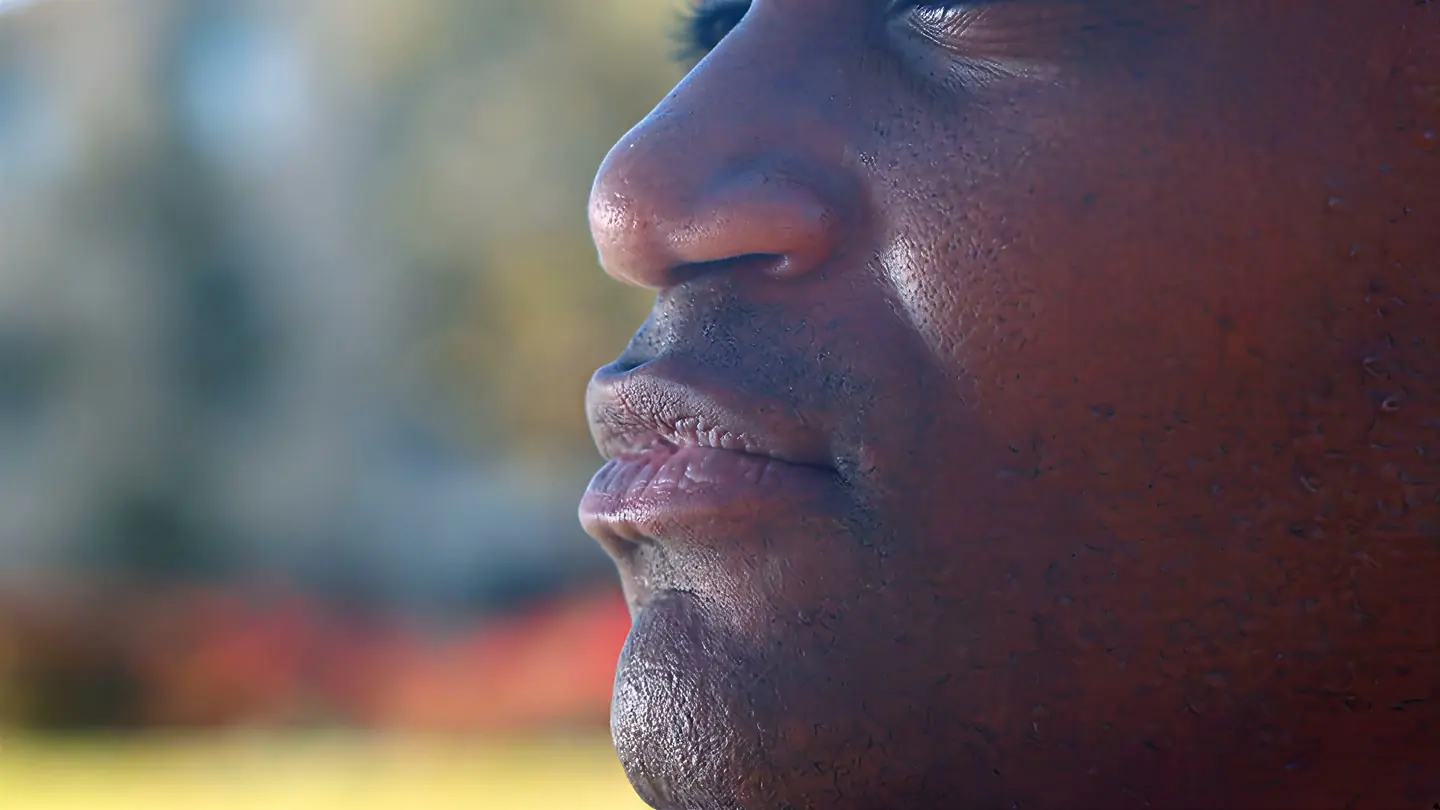
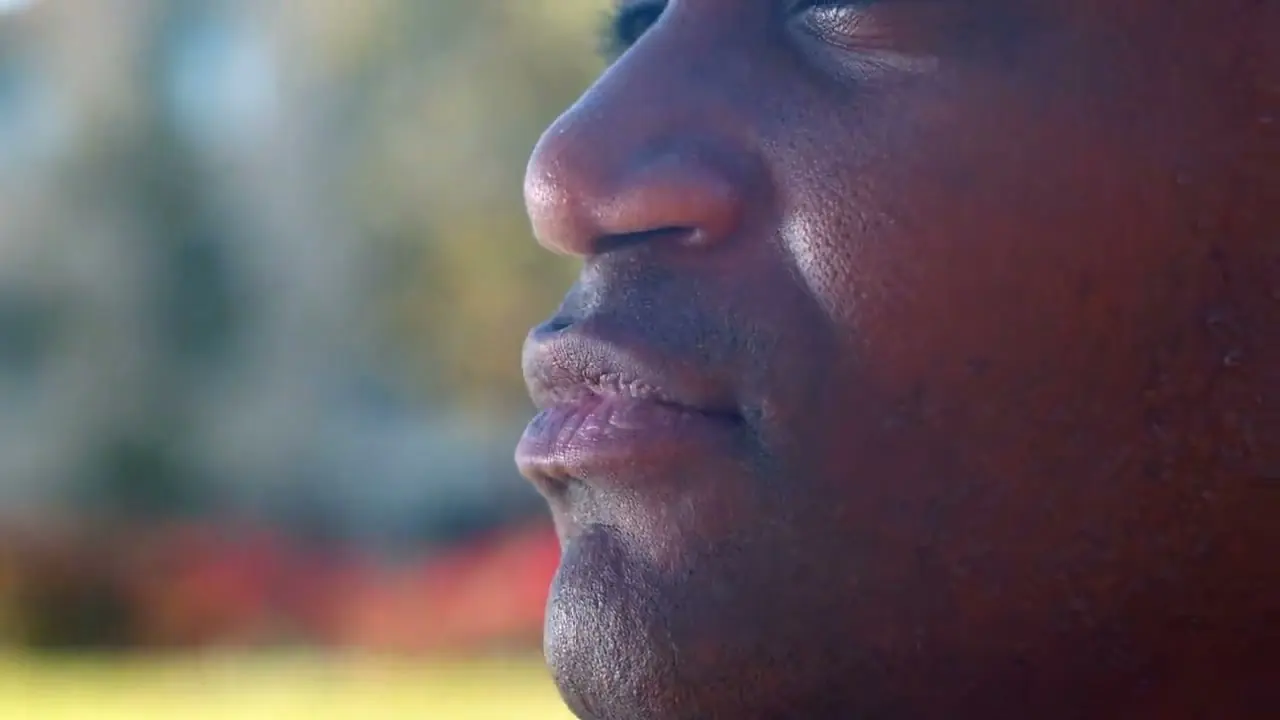
Real portrait: compressed 720p to Pro 4K
A real outdoor close-up enhanced to 4K with Pro Quality. Inspect skin texture, facial edges, eyelashes, and the softly focused background.
Before
1280 × 720
After
3840 × 2160
Quality
Pro Quality · 4K
Look at
Skin texture, facial edges, and eyelashes
Verified Pro Quality result · Same five-second input · Processing record checked
How to fix pixelated video depends on the cause. Re-exporting the original is best when it still exists. If only a compressed or low-resolution copy remains, AI enhancement can reduce block edges and improve video quality, but it cannot recreate detail that was never recorded.
Preparing a YouTube upload? Follow the YouTube upload quality workflow before publishing. If the local file is clear but the watch page looks soft, use the YouTube blur diagnosis to check processing, playback Quality, and connection limits first.
OUR EVIDENCE STANDARD
How we verify every public result
Every published comparison uses the exact source clip and verified Pro Quality 4K output. Timing, dimensions, processing record, and source or license details are checked before the case appears here.
1
Pro Quality · 4K
The processing job and result reference are recorded.
2
1280×720 → 3840×2160
The source and delivered pixel dimensions are checked.
3
Same timing and crop
Each pair keeps the same five-second scene and framing.
4
Source and license disclosed
Public provenance stays visible beside every case.
Evidence summary
Every public result follows the same verification steps before publication.
4 published comparisons4 processing records checked
Choose your original MP4, MOV, M4V, WebM, or MKV. Select 1080p, 2K, or 4K and review the exact price before processing.
Can a pixelated video be fixed completely?
Not always. AI can soften compression blocks and create a cleaner enlargement, but cannot recover detail that was never recorded.
Why does my video look pixelated after export?
Low export bitrate, repeated compression, or resolution mismatch can create blocky motion. If you have the original, export it again first.
Can I upscale a low-resolution video to 1080p, 2K, or 4K?
Often, yes. Choose an MP4, MOV, M4V, WebM, or MKV up to five minutes and 1GB. Available 1080p, 2K, and 4K outputs depend on the source resolution.
How much does AI video enhancement cost?
The one-time price depends on the video length and the 1080p, 2K, or 4K output you choose. Select a video and output size to see the total for that video before payment.
CHECK BEFORE YOU PAY
See which output sizes fit your video
When you are ready to fix pixelated video, choose the original file for a free local metadata check. Upload begins only after you choose an output and continue.