
BEFORE YOU RE-EXPORT
Is the upload bad, or is YouTube still processing?
To improve YouTube video quality, first determine whether the local master is clear. A new upload is often available in low quality before higher-resolution versions finish.
| Observation | Likely cause | What to check |
|---|---|---|
| 1080p or 4K is missing soon after upload | Higher-quality processing is incomplete | Open the watch page and check Settings → Quality later |
| The same video changes quality while playing | Adaptive streaming | Network speed, device, screen size, browser, and Quality selection |
| The downloaded or local export is also blocky | The source or export is weak | Resolution, bitrate, repeated compression, and original availability |
| Only fast motion breaks into squares | Not enough bitrate for scene complexity | Export bitrate and whether grain or motion needs more data |
| Vertical video has baked-in black bars | Bars were added before upload | Export the native aspect ratio without padding |
| The source is SD and HD never appears | Uploaded resolution limits available playback | The pixel dimensions of the actual uploaded file |
A CLEAN UPLOAD PATH
Prepare the master once, then let YouTube encode it
These steps avoid the common cycle of downloading a compressed copy, sharpening it, and uploading another generation.

- 01High-quality source
Keep the clearest original, native shape, and recorded frame rate.
- 02Upload the master
Use a supported export with enough bitrate for motion and detail.
- 03HD / 4K processing
Higher-resolution versions can appear after the first low-quality stream.
- 04Verify playback quality
Open Quality on the watch page and test the intended device.
- Locate the highest-quality source
Use the camera original or a high-quality editor master. A file saved from a chat or social platform may already have lower dimensions and bitrate.
- Keep the native aspect ratio
YouTube’s player adapts to landscape, vertical, and square video. Do not bake black bars into the file just to force 16:9.
- Keep the recorded frame rate
Upload 24, 25, 30, 48, 50, or 60 fps as recorded instead of resampling merely to reach a larger number.
- Use a YouTube-supported upload file
YouTube recommends MP4, H.264 High Profile, progressive scan, 4:2:0 chroma, and AAC-LC or another supported audio codec.
- Allocate bitrate for motion and grain
Complex footage needs more data than static footage at the same resolution. Use the platform figures as references, not as a substitute for watching the exported master.
- Upload, wait, then verify the watch page
Check which qualities are available after background processing. Test on the intended device and connection before diagnosing the upload as permanently blurry.
OFFICIAL SDR REFERENCES
Match resolution, frame rate, and bitrate
YouTube’s current upload guidance provides reference ranges for SDR H.264 uploads. Higher frame-rate footage uses the higher range.
| Resolution | Standard frame rate | High frame rate | Typical use |
|---|---|---|---|
| 2160p / 4K | 35–45 Mbps | 53–68 Mbps | Native 4K or a tested upscale |
| 1440p / 2K | 16 Mbps | 24 Mbps | High-resolution desktop playback |
| 1080p | 8 Mbps | 12 Mbps | Common HD upload |
| 720p | 5 Mbps | 7.5 Mbps | Smaller HD sources |
| 480p | 2.5 Mbps | 4 Mbps | Standard-definition source |
Putting a 360p video inside a 4K frame does not create native 4K detail. If YouTube needs a larger upload, compare an AI video upscale before export and keep the untouched original.
AFTER THE VIDEO IS LIVE
Fix the viewing path before replacing the file
When the master is clear and processing has finished, the remaining causes are usually playback selection, network conditions, device support, or browser capability.
Check the Quality menu
YouTube adapts playback to the connection, player size, source, device, and browser. Select the target quality manually for a controlled review. A viewer on a constrained connection may still receive a smaller stream.
Check the highest available source quality
A video uploaded in standard definition cannot be selected as native HD later. If only an SD master exists, decide whether careful video enhancement improves the footage enough to justify a replacement upload.
Do not confuse a platform issue with source repair
If every YouTube video looks soft on one phone or network, troubleshoot playback. If only your upload looks poor and the local export matches it, return to the source and export workflow.
REAL BEFORE & AFTER
Test motion, real footage, and small text separately
These five-second Pro 4K examples show why one export setting does not fit every YouTube video. Night motion, skin detail, and small screen text need different amounts of bitrate.
CASE 01
Night traffic: compressed 720p to Pro 4K
A real nighttime street clip enhanced to 4K with Pro Quality. Compare moving vehicles, road markings, small lights, and dark building edges.
- Before
- 1280 × 720
- After
- 3840 × 2160
- Quality
- Pro Quality · 4K
- Look at
- Moving vehicles, road markings, and small lights
Verified Pro Quality result · Same five-second input · Processing record checked
Night upscaling case

Web playback rendition derived from the verified Pro 4K output. Review focus: Moving vehicles, road markings, and small lights.
CASE 02
Real portrait: compressed 720p to Pro 4K
A real outdoor close-up enhanced to 4K with Pro Quality. Inspect skin texture, facial edges, eyelashes, and the softly focused background.
- Before
- 1280 × 720
- After
- 3840 × 2160
- Quality
- Pro Quality · 4K
- Look at
- Skin texture, facial edges, and eyelashes
Verified Pro Quality result · Same five-second input · Processing record checked
Portrait upscaling case
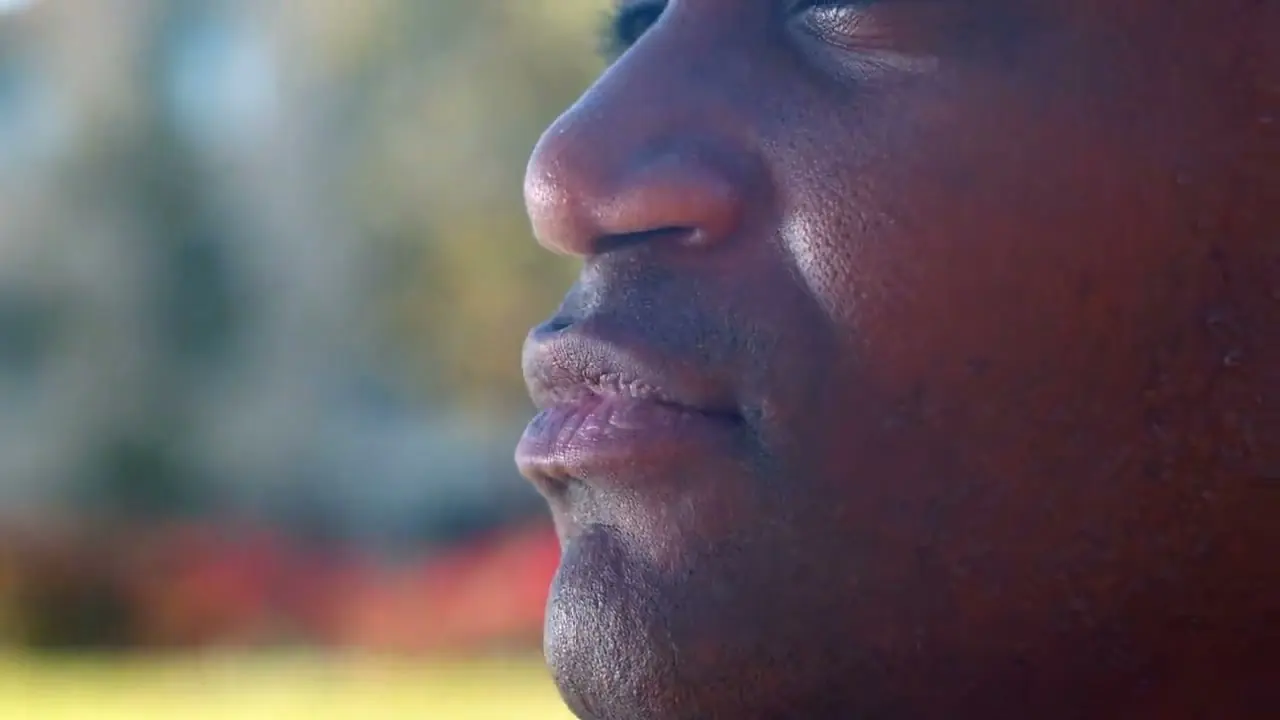
Web playback rendition derived from the verified Pro 4K output. Review focus: Skin texture, facial edges, and eyelashes.
CASE 03
Interface text: compressed 720p to Pro 4K
A deliberately low-bitrate interface recording enhanced to 4K with Pro Quality. Compare text strokes, thin borders, and the moving shape.
- Before
- 1280 × 720
- After
- 3840 × 2160
- Quality
- Pro Quality · 4K
- Look at
- Small text, thin borders, and UI edges
Verified Pro Quality result · Same five-second input · Processing record checked
Interface upscaling case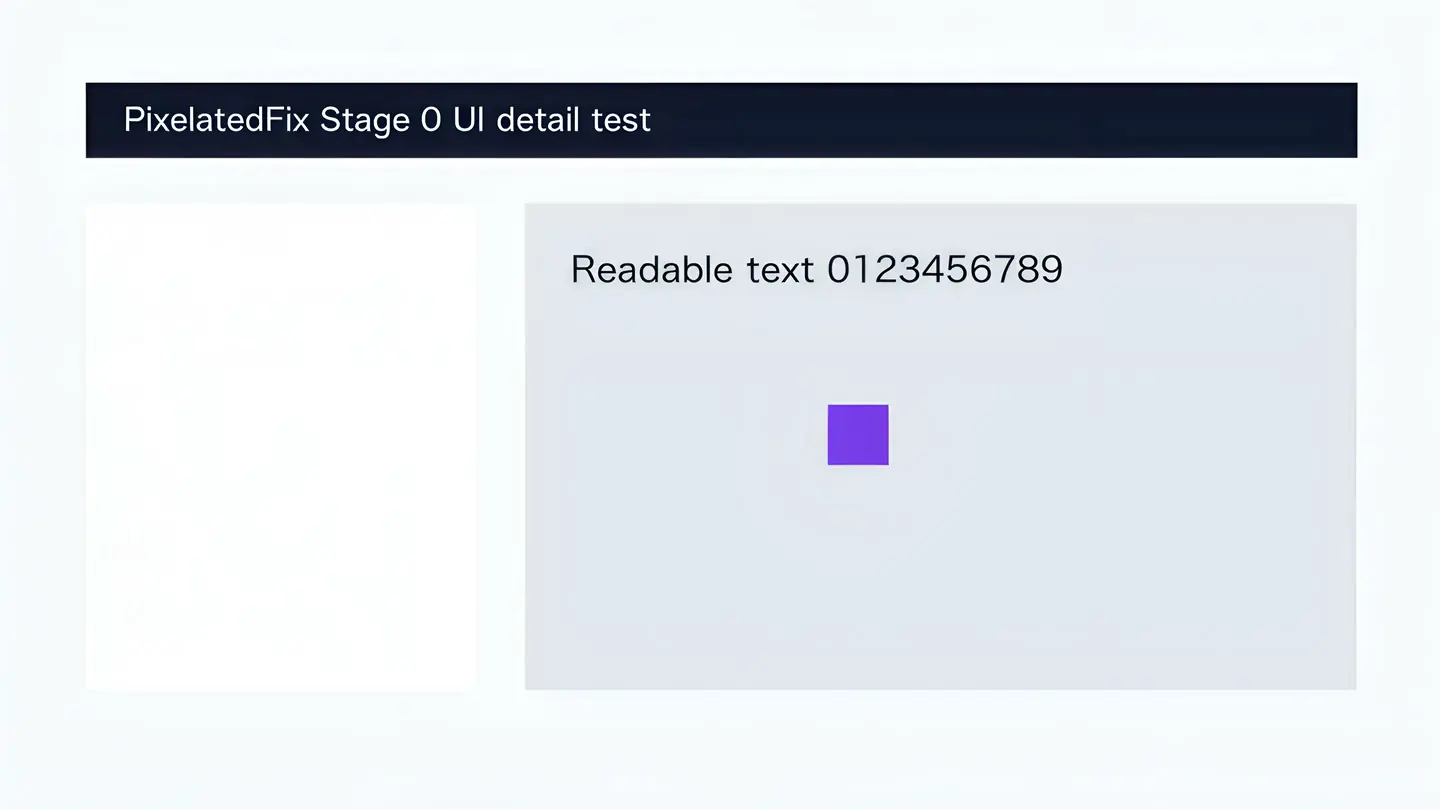
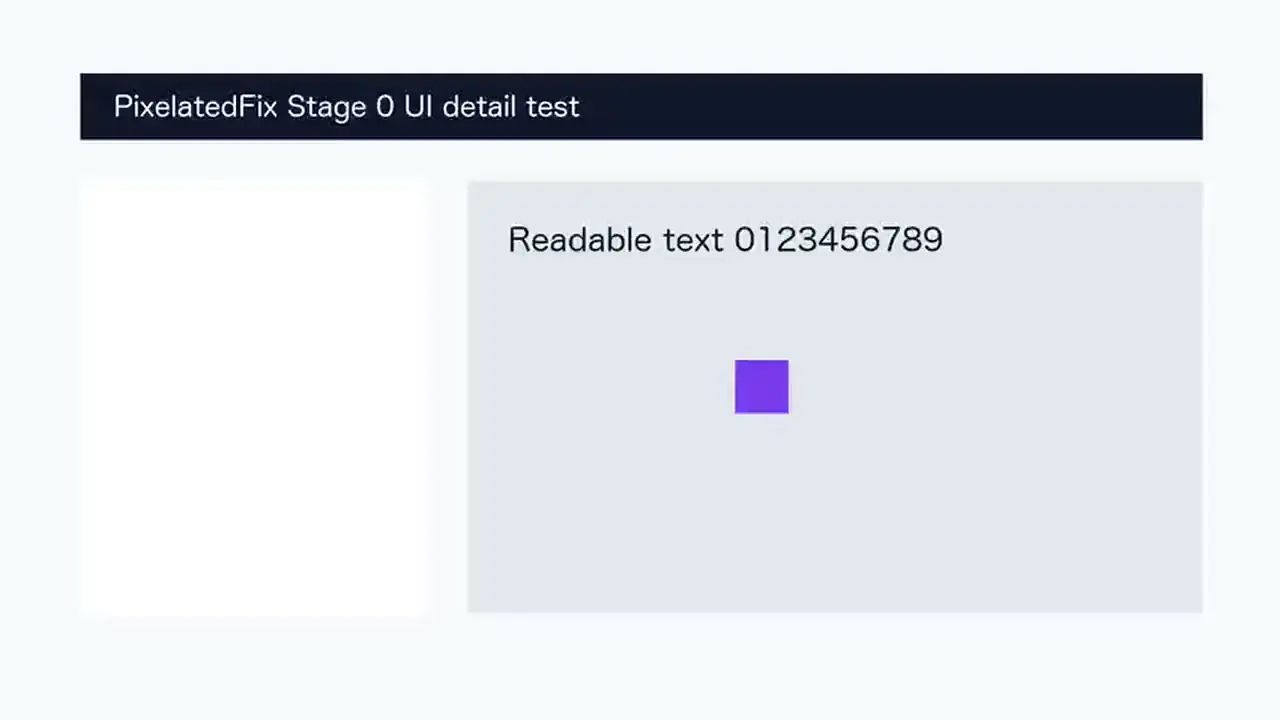
Web playback rendition derived from the verified Pro 4K output. Review focus: Small text, thin borders, and UI edges.