60-SECOND DIAGNOSIS
Compare the watch page with the local file
If you are asking “Why is my YouTube video blurry?”, one comparison eliminates most wrong fixes. Open the exported file locally at 100%, then open the YouTube watch page at the same moment.
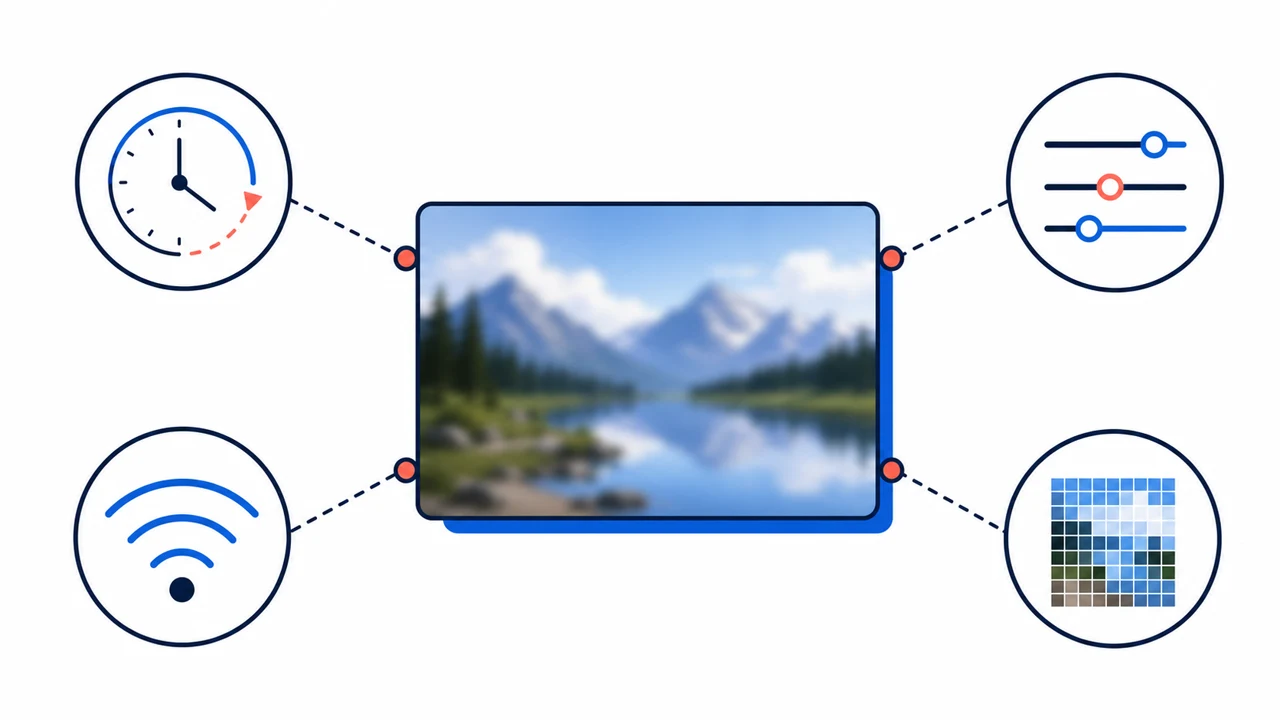
- 01Is the local file clear?
Compare the exported master and watch page at the same moment.
- 02Check processing and Quality
Confirm the uploaded HD or 4K option is available and selected.
- 03Adaptive streaming
Test another connection, device, or browser before replacing the upload.
- 04Repair the source last
Re-export or enhance only when the local master is also soft or blocky.

Playback quality path for this diagnosis
- Local exportCompare the master first
- YouTube uploadInitial playback may be smaller
- HD / 4K processingHigher streams can arrive later
- Viewer qualityAuto adapts to the device and network
Why YouTube video becomes pixelated
Pixel blocks that appear mainly during motion, foliage, dark gradients, or small text can come from a smaller playback stream even when the local export is clear. Check whether the watch page has finished HD processing and manually select the available Quality setting before re-uploading. When the same blocks are present in the local master, start from the original or editor timeline instead of downloading the processed YouTube copy.
| Local file | YouTube | Most likely cause | Next move |
|---|---|---|---|
| Sharp | HD option missing | HD processing is incomplete | Wait and check the Quality menu later |
| Sharp | HD exists but Auto is soft | Adaptive playback selected a lower stream | Select HD manually and test the connection |
| Soft or blocky | Looks similar | The upload source or export is weak | Return to the original or re-export |
| Sharp still frame | Blocks during motion | Motion complexity and compression | Inspect bitrate and repeated encoding |
| Correct shape | Bars are visible inside the frame | Padding was baked into the file | Export the native aspect ratio |
FIX THE CORRECT LAYER
What to do on phone, computer, and TV
If “Why is my YouTube video blurry?” remains unanswered after checking the local file, start with the viewing path. Move to source repair only when the uploaded file itself is the limiting factor.
- Open Settings → Quality
Choose a specific HD option instead of assuming Auto selected the highest stream. Available labels still depend on the uploaded source and device support.
- Test another connection
Compare Wi-Fi and mobile data or a wired TV connection. If every video becomes clearer, the source is not the problem.
- Check another device or browser
Some devices and browsers do not support every high-quality format. Compare the same timestamp without changing the upload.
- Wait for higher-quality processing
For your own new upload, confirm whether 1080p or 4K is still absent from the Quality menu before replacing the file.
- Inspect the exported master
If it already contains blur, blocks, or enlarged pixels, return to the editor project or least-compressed original.
- Repair only the source defect that remains
Use AI enhancement for compatible low resolution or compression. Severe focus errors and motion blur have stricter limits than simple enlargement.
IF YOU UPLOADED THE VIDEO
Fix the master, not the YouTube copy
Downloading your own processed YouTube video and re-uploading it adds another generation. Work from the original camera file or editor timeline.
Preserve the recorded frame rate
An unnecessary change from 30 to 60 fps does not create new captured motion. It can add duplicated frames and increases the amount of video the encoder must describe.
Export the actual target dimensions
For standard 16:9 playback, 1920 × 1080 is 1080p and 3840 × 2160 is 4K. Vertical and square uploads should keep their native aspect ratios; YouTube’s player adapts without baked-in bars.
Use enough bitrate for the scene
Fast motion, water, foliage, grain, confetti, and small interface text are harder to compress than static footage. Review the final local export in motion before upload.
WHEN NOT TO UPLOAD AGAIN
Signs that the video file is not the problem
These signals point to playback, processing, or device conditions rather than a need for AI repair.
- The local exported master is clear at the same timestamp.
- The YouTube Quality menu still lacks the uploaded HD or 4K resolution.
- Other videos also look blurry on the same connection or device.
- Manual HD selection fixes the image immediately.
- The problem changes when the player or window becomes smaller.
For the complete export and upload process, use the separate YouTube video quality guide. This page fixes blurry playback; that guide prepares a better source file and upload.
REAL BEFORE & AFTER
See what source softness looks like before upload
These real Pro 4K cases isolate dark motion, small interface text, and facial detail. They help distinguish a weak source from a temporary YouTube playback decision.
CASE 01
Night traffic: compressed 720p to Pro 4K
A real nighttime street clip enhanced to 4K with Pro Quality. Compare moving vehicles, road markings, small lights, and dark building edges.
- Before
- 1280 × 720
- After
- 3840 × 2160
- Quality
- Pro Quality · 4K
- Look at
- Moving vehicles, road markings, and small lights
Verified Pro Quality result · Same five-second input · Processing record checked
Night upscaling case

Web playback rendition derived from the verified Pro 4K output. Review focus: Moving vehicles, road markings, and small lights.
CASE 02
Interface text: compressed 720p to Pro 4K
A deliberately low-bitrate interface recording enhanced to 4K with Pro Quality. Compare text strokes, thin borders, and the moving shape.
- Before
- 1280 × 720
- After
- 3840 × 2160
- Quality
- Pro Quality · 4K
- Look at
- Small text, thin borders, and UI edges
Verified Pro Quality result · Same five-second input · Processing record checked
Interface upscaling case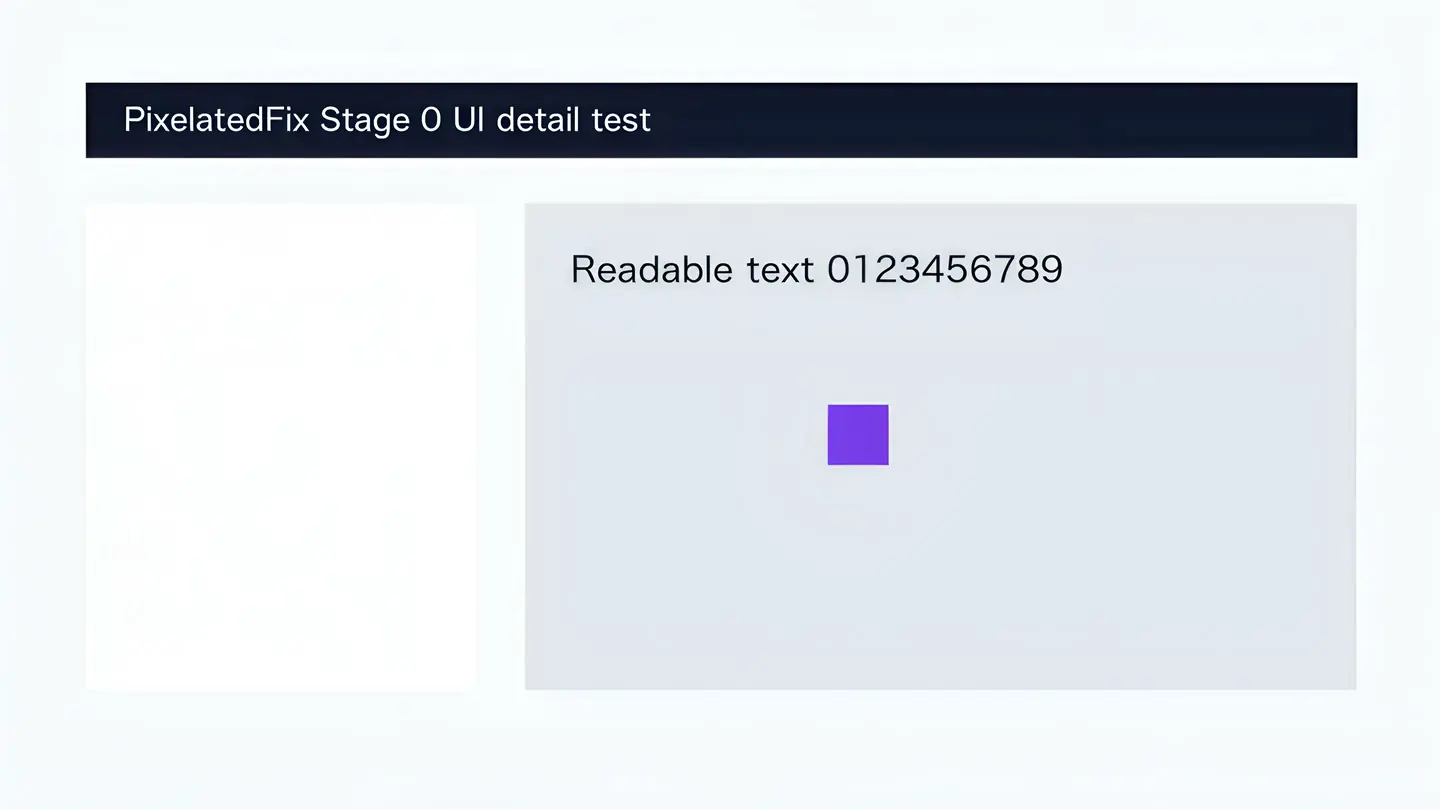
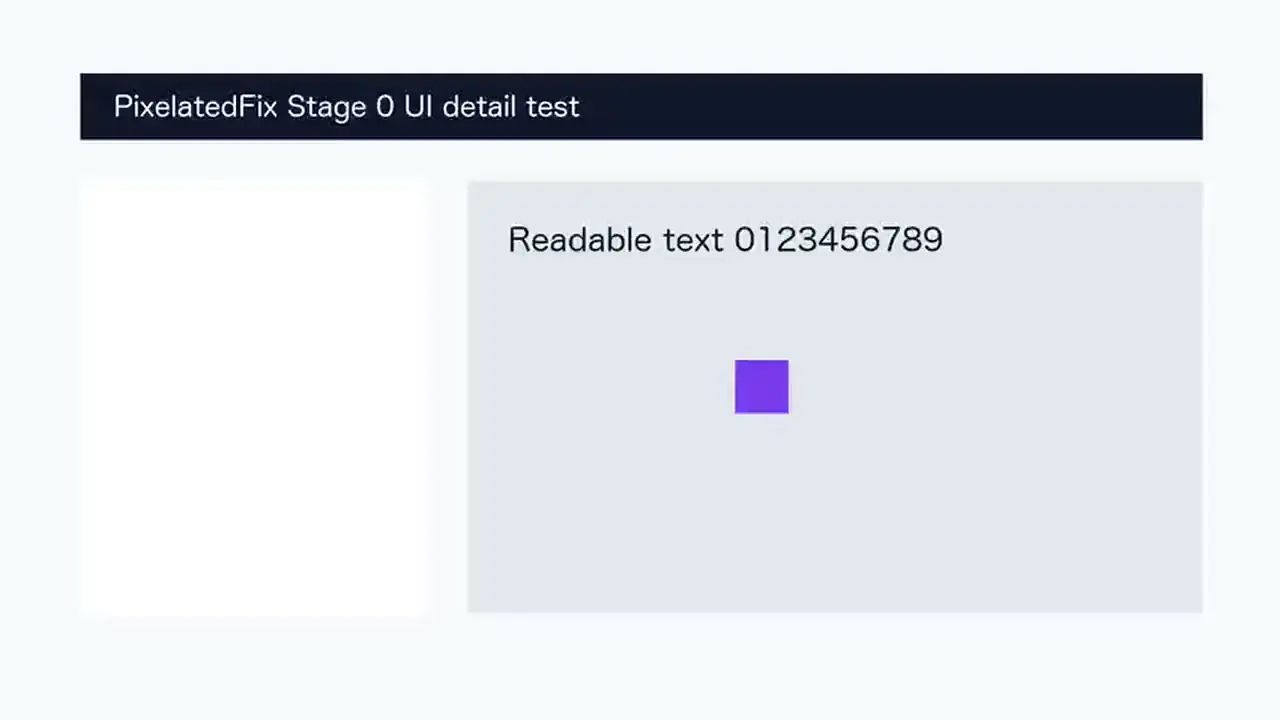
Web playback rendition derived from the verified Pro 4K output. Review focus: Small text, thin borders, and UI edges.
CASE 03
Real portrait: compressed 720p to Pro 4K
A real outdoor close-up enhanced to 4K with Pro Quality. Inspect skin texture, facial edges, eyelashes, and the softly focused background.
- Before
- 1280 × 720
- After
- 3840 × 2160
- Quality
- Pro Quality · 4K
- Look at
- Skin texture, facial edges, and eyelashes
Verified Pro Quality result · Same five-second input · Processing record checked
Portrait upscaling case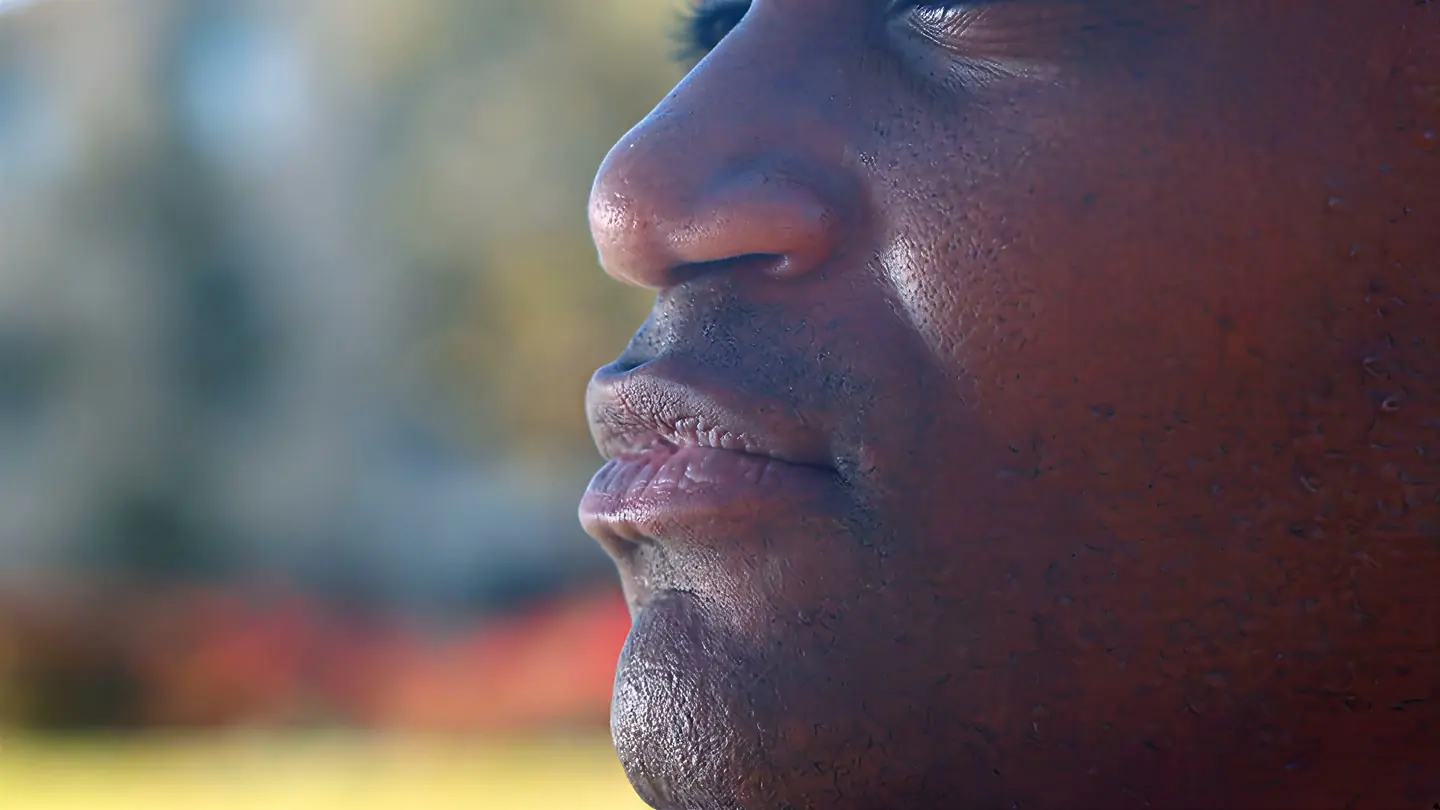
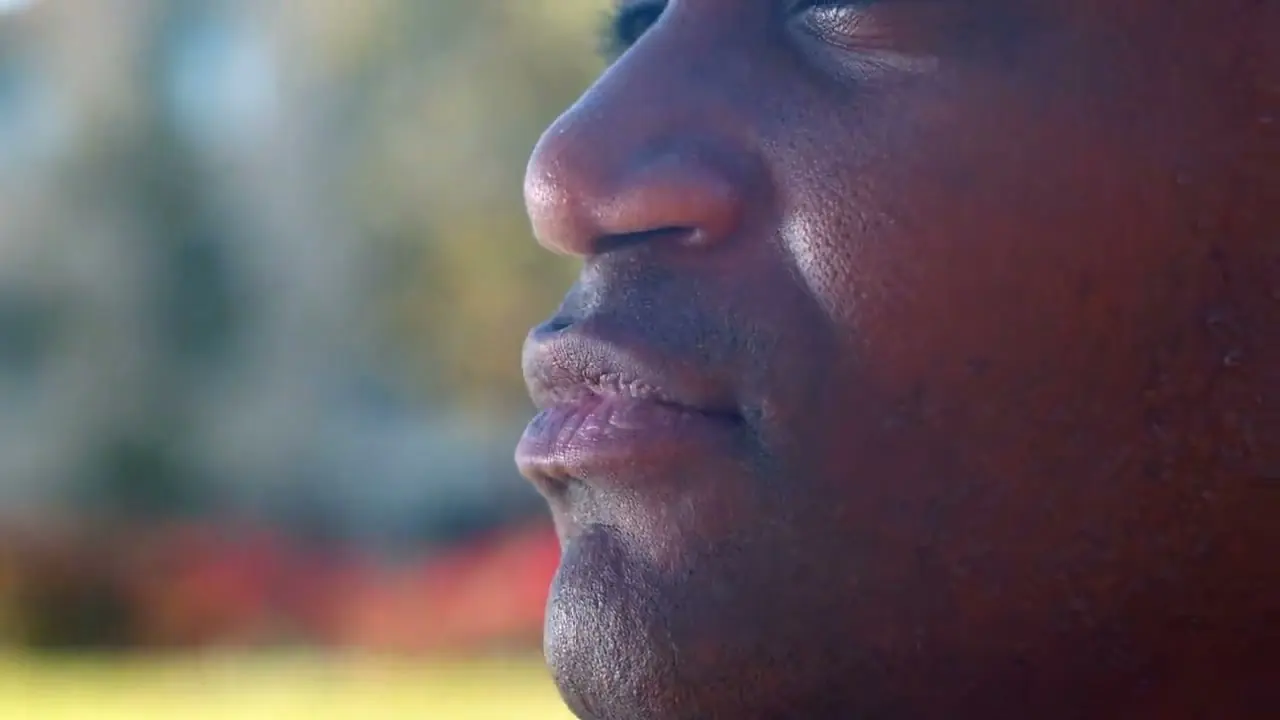
Web playback rendition derived from the verified Pro 4K output. Review focus: Skin texture, facial edges, and eyelashes.