

FIND THE VIDEO QUALITY PROBLEM
What makes a video look low quality?
To fix low-quality video, play the file at full size and watch a scene with motion. A still image can hide moving noise, compression blocks, and flicker.
Keep native resolution, shape, and frame rate.
Choose enhancement only for compatible softness, compression, or low resolution.
| Symptom | What probably happened | Best first response |
|---|---|---|
| Visible square blocks | Too little video data or repeated compression | Find an earlier copy; otherwise try block cleanup |
| Large, soft pixels | Small source enlarged for display | Use the original dimensions or test AI upscaling |
| Uniform softness | Missed focus, lens softness, or scaling | Separate true defocus from low resolution |
| Moving grain in shadows | Low-light recording or heavy brightening | Reduce noise gently before sharpening |
| Washed highlights or black shadows | Exposure clipping or color-range mismatch | Correct the grade or re-export from the project |
| Green frames, freezes, or playback errors | Damaged or unreadable video | Recover the original or export a new copy |
RECOVERY ORDER
Use the least destructive fix first
A clean source and careful export preserve real information. Enhancement comes after those options, not before them.
- Find the earliest available copy
Compare resolution, duration, and file size. A camera original usually contains more useful detail than a messaging download.
- Rule out playback scaling
View the file locally at 100% and choose the intended online quality. Do not repair a low-resolution preview stream.
- Reopen the editing project
Reduce excessive sharpening or noise reduction, correct scaling, and export from the original timeline rather than another compressed copy.
- Correct light and color conservatively
Make faces and important detail readable without pushing shadows so far that noise becomes the dominant texture.
- Choose the output size you need
Keep the source aspect ratio and frame rate. Choose 1080p or 4K only when the video and where you will use it justify the larger size.
- Test AI on a difficult scene
Use motion, small text, a face, or detailed texture. If that segment looks artificial, processing the entire file will not make it better.
CHOOSE THE CLOSEST TOOL
Choose the tool that matches the video problem
Use a specific video tool for pixelation, upscaling, grain, or several quality problems together.
Use pixelated-video repair for visible blocks
The how to fix pixelated video guide covers square compression blocks, repeated uploads, and when exporting again is better than AI repair.
Use the video enhancer for mixed defects
The video enhancer is the broader path when softness, noise, compression, and low resolution overlap and the complete result needs to be judged as a whole.
Use the video upscaler when size is the constraint
The AI video upscaler converts low-resolution video to 1080p, 2K, or 4K while keeping the aspect ratio and timing. A larger output still cannot create true camera detail that is missing.
Use source recovery for corrupted files
A file that will not play, has green frames, or skips unpredictably needs recovery or a new export. Enhancement should not be used to hide a damaged source.
HONEST LIMITS
A finished video can still look worse
A complete file and a better-looking result are not the same thing.
A file can have the requested resolution, duration, shape, and audio while still looking worse than a simple resize. PixelatedFix explains that difference in how we check results and publishes matched real-world examples for faces, dark motion, and small text.
Pay attention to faces, skin texture, text, hair, repeated lines, and edges against flat backgrounds. Stop when the result adds halos, waxy texture, temporal crawling, or invented detail that changes from frame to frame.
REAL BEFORE & AFTER
Compare motion, small text, and portrait detail
The night-traffic, interface, and real-portrait examples are matched five-second inputs with verified Pro Quality 4K outputs.
CASE 01
Night traffic: compressed 720p to Pro 4K
A real nighttime street clip enhanced to 4K with Pro Quality. Compare moving vehicles, road markings, small lights, and dark building edges.
- Before
- 1280 × 720
- After
- 3840 × 2160
- Quality
- Pro Quality · 4K
- Look at
- Moving vehicles, road markings, and small lights
Verified Pro Quality result · Same five-second input · Processing record checked
Night upscaling case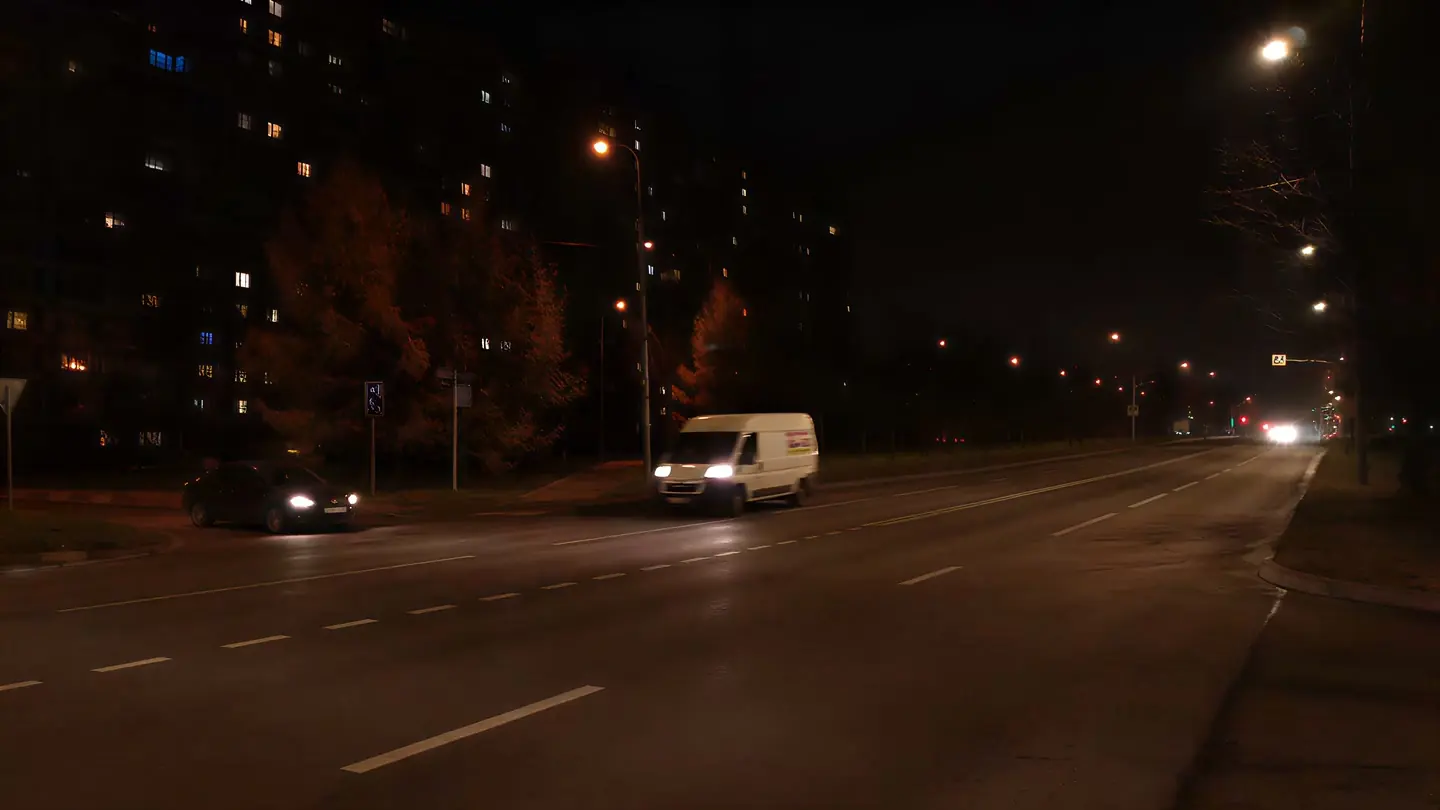
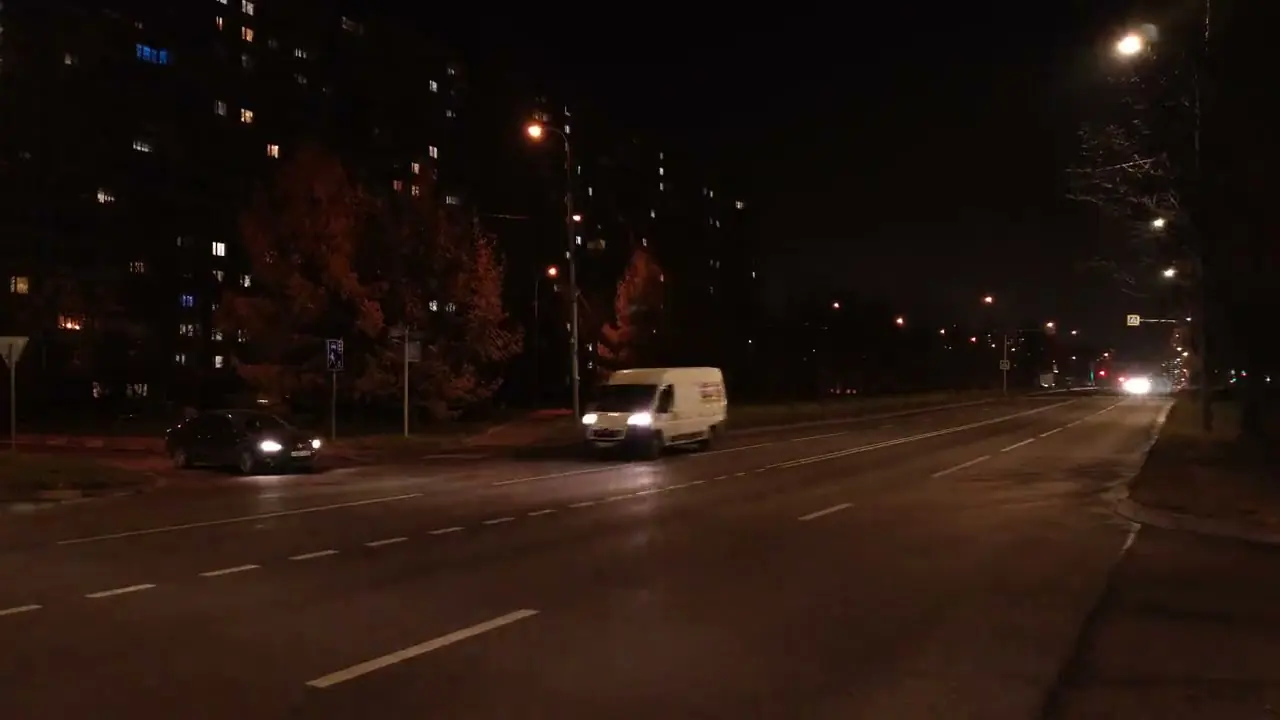
Web playback rendition derived from the verified Pro 4K output. Review focus: Moving vehicles, road markings, and small lights.
CASE 02
Interface text: compressed 720p to Pro 4K
A deliberately low-bitrate interface recording enhanced to 4K with Pro Quality. Compare text strokes, thin borders, and the moving shape.
- Before
- 1280 × 720
- After
- 3840 × 2160
- Quality
- Pro Quality · 4K
- Look at
- Small text, thin borders, and UI edges
Verified Pro Quality result · Same five-second input · Processing record checked
Interface upscaling case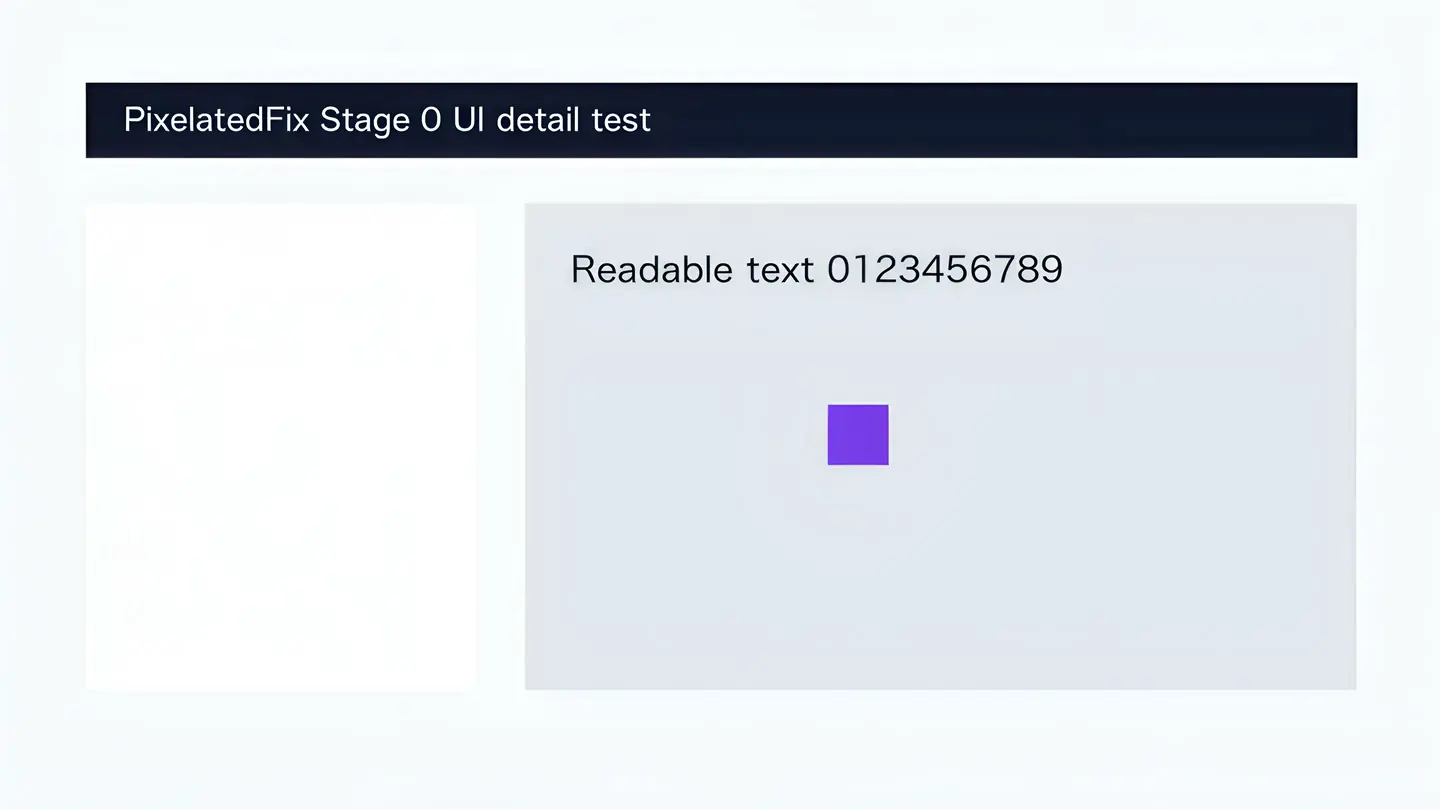
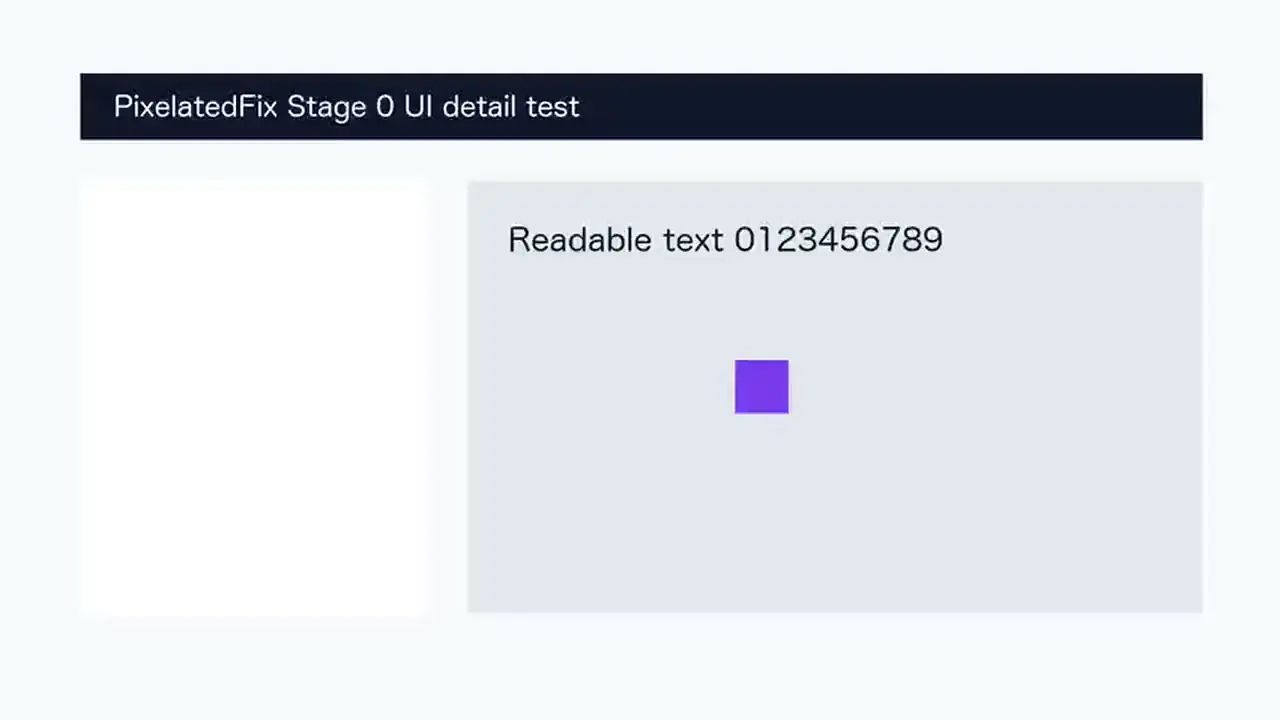
Web playback rendition derived from the verified Pro 4K output. Review focus: Small text, thin borders, and UI edges.
CASE 03
Real portrait: compressed 720p to Pro 4K
A real outdoor close-up enhanced to 4K with Pro Quality. Inspect skin texture, facial edges, eyelashes, and the softly focused background.
- Before
- 1280 × 720
- After
- 3840 × 2160
- Quality
- Pro Quality · 4K
- Look at
- Skin texture, facial edges, and eyelashes
Verified Pro Quality result · Same five-second input · Processing record checked
Portrait upscaling case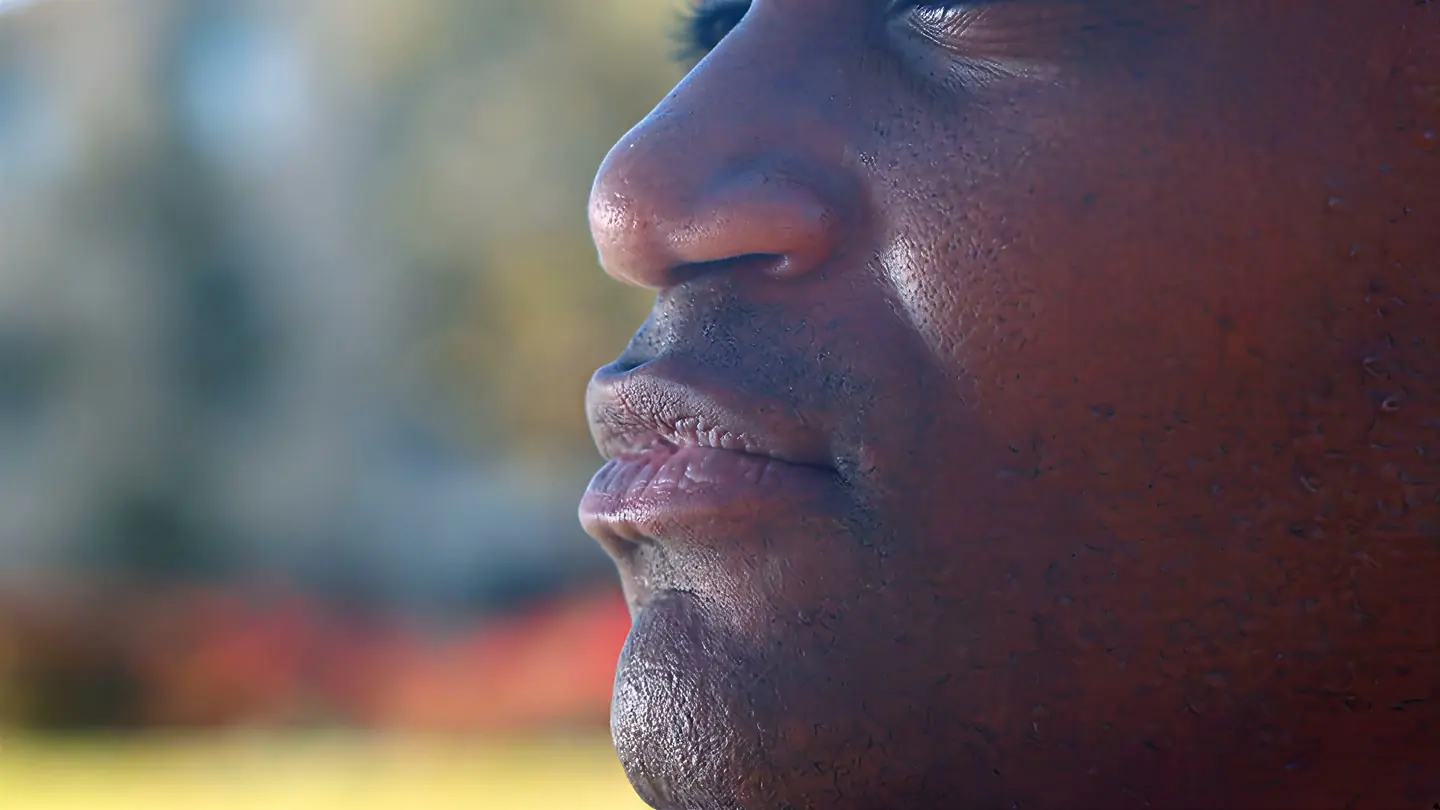
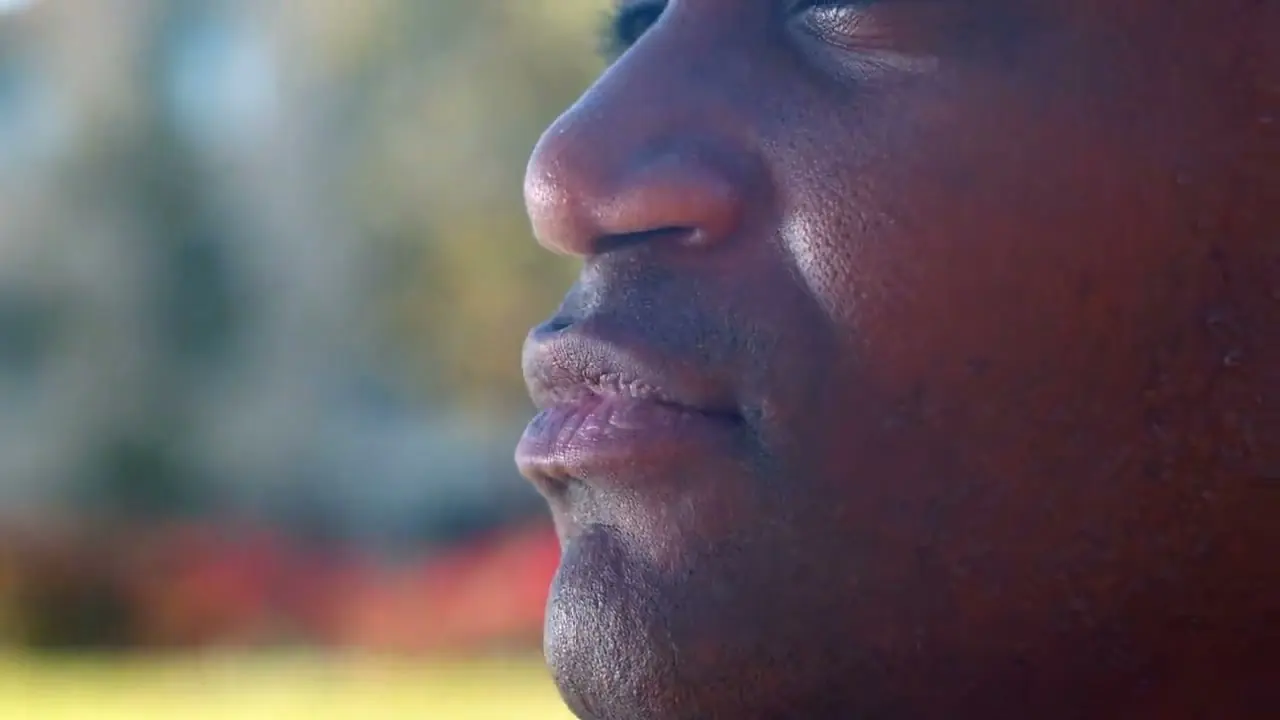
Web playback rendition derived from the verified Pro 4K output. Review focus: Skin texture, facial edges, and eyelashes.