Use an AI video upscaler for 360p-to-1080p or 720p-to-1080p conversion, with 2K and 4K full-video output when available.
Full-video outputs1080p·2K·4KAvailable options depend on your source
Check your video free No signup to check Full video uploads only if you continue
REAL 4K BEFORE & AFTER
Compare a real 720p to 4K result
The first example is a real 3840 × 2160 output. Use the 2× detail view to compare petals, leaf edges, and fine texture, then inspect other low-resolution video types.
CASE 01
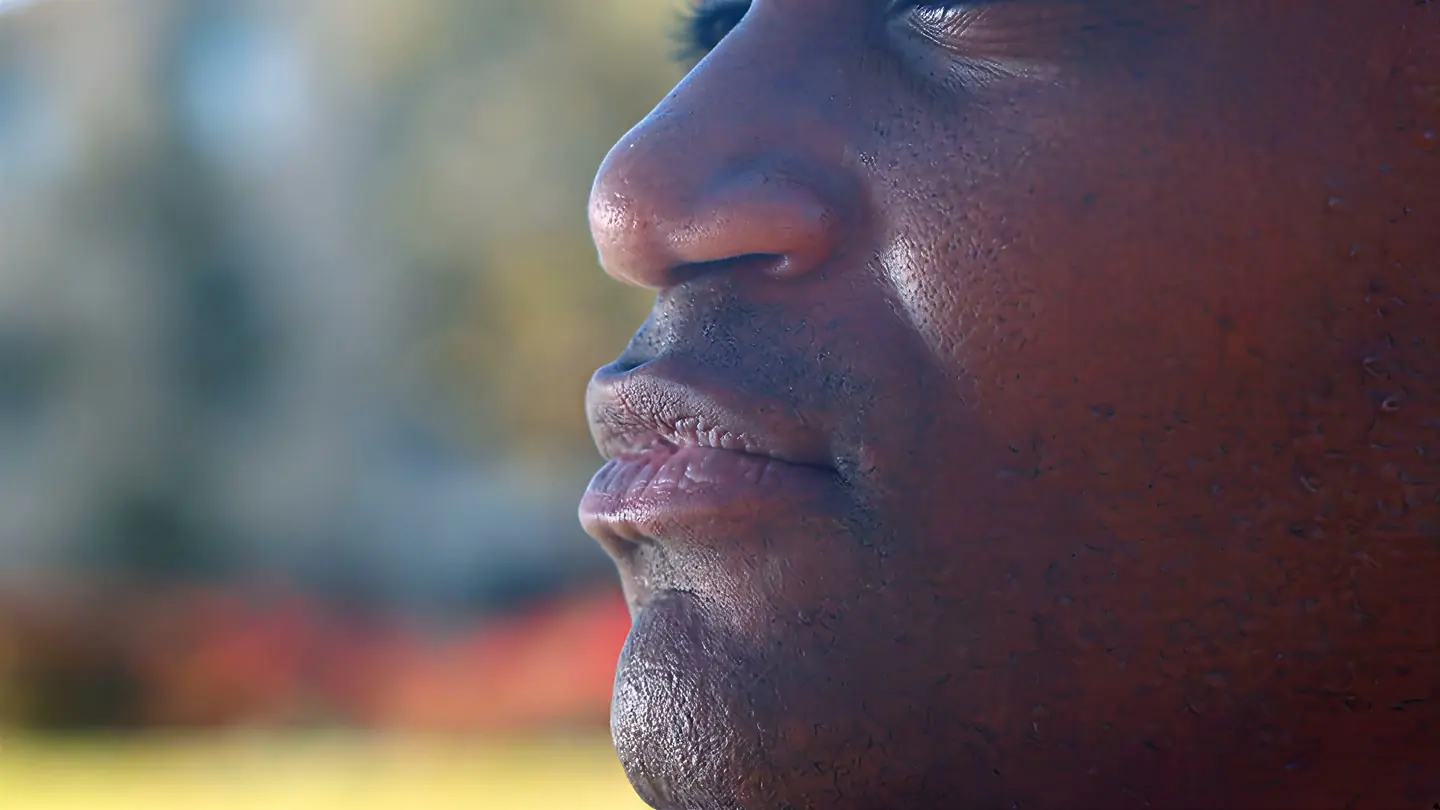
Flower detail: compressed 720p to Pro 4K
A real five-second flower clip enhanced to 4K with Pro Quality. Compare the red petals, purple leaf edges, and fine texture in the same frames.
Before
1280 × 720
After
3840 × 2160
Quality
Pro Quality · 4K
Look at
Petals, leaf edges, and texture
Verified Pro Quality result · Same five-second input · Processing record checked
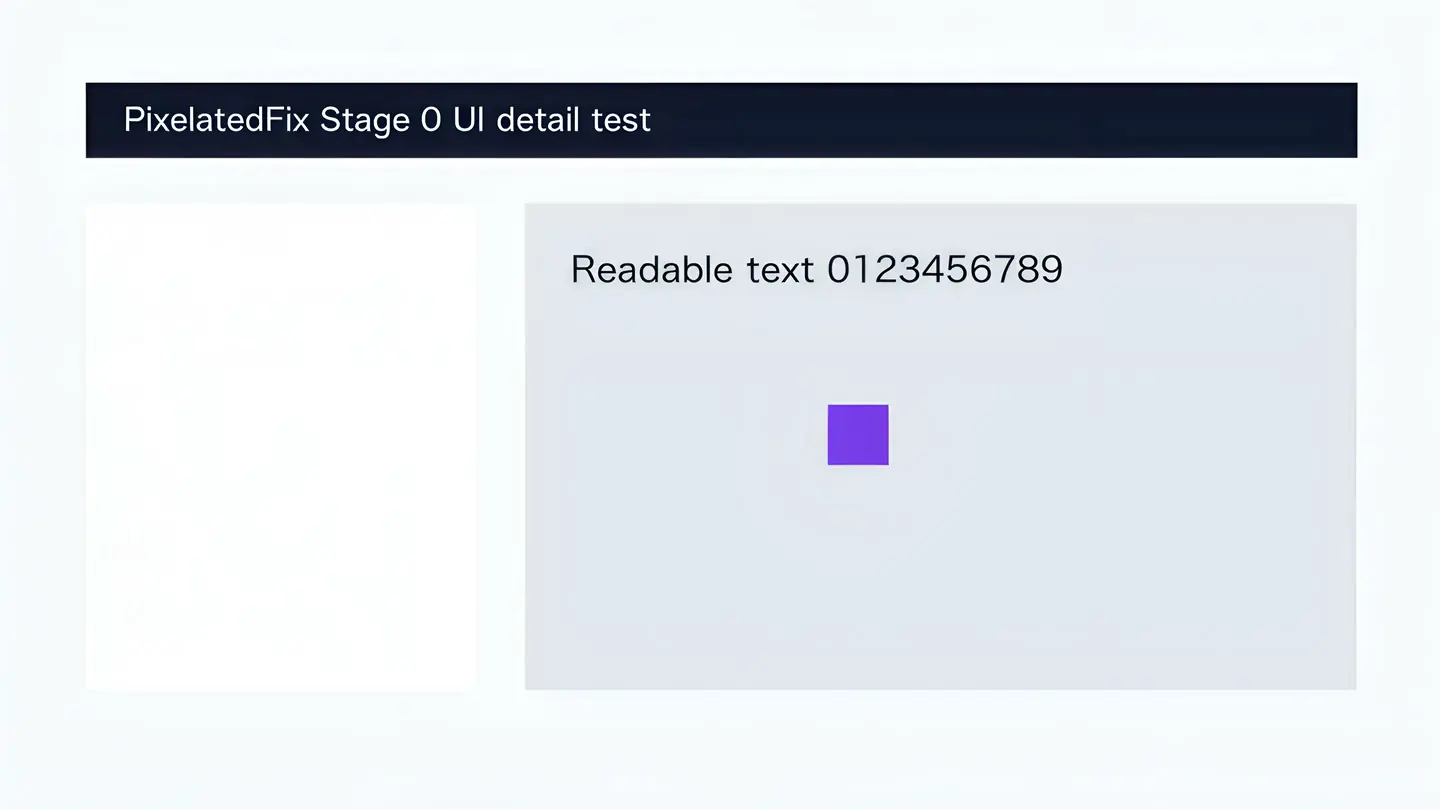
Web playback rendition derived from the verified Pro 4K output. Review focus: Small text, thin borders, and UI edges.
Source: PixelatedFix interface fixture · PixelatedFix example library · Original PixelatedFix example
DIRECT ANSWER
What does an AI video upscaler do?
An AI video upscaler enlarges low-resolution video while making edges cleaner and reducing some visible compression. It can work as a 360p-to-1080p or 720p-to-1080p converter, with 2K and 4K options when the source is suitable. A larger resolution cannot create missing camera detail, so compare the real matched Before and After examples before choosing a full-video upscale.
Reviewed by PixelatedFix · Updated July 26, 2026
Input
360p, 480p, 720p, and other accepted sizes
Targets
1080p, 2K, or 4K depending on source
Comparison
Same video frame Before and After
Payment
One-time quote based on length and output
CHOOSE A SENSIBLE TARGET
Which output resolution should you use?
A larger resolution is not automatically better. Choose the smallest output that fits where you will use the video and compare the matched examples for realistic expectations.
Resolution changes pixel dimensions, not the detail already captured.
480p854 × 480
Small SD source
720p1280 × 720
HD source
1080p1920 × 1080
Full HD output
4K3840 × 2160
Ultra HD output
01
360p to 1080p
Often the most practical target for old web clips, messaging downloads, and small screen recordings. It improves presentation without forcing an extreme enlargement.
02
720p to 1080p or 2K
A moderate scale can clean edges for modern players and social exports. Test fine text and faces because aggressive sharpening is more visible here.
03
1080p → 4K
Useful for 4K timelines, large displays, or reframing when the source is already reasonably clean. A noisy or heavily compressed 1080p file may benefit more from enhancement than pure scaling.
04
Already-compressed sources
Upscaling cannot undo every previous compression step. Clean visible blocks first, then export once and avoid repeated downloads and uploads.
QUICK DIAGNOSIS
Choose 1080p, 2K, or 4K for the source
Source resolution, compression, aspect ratio, and where you plan to use the video all affect whether 1080p, 2K, or 4K is the sensible next step.
What you see
Likely cause
Best next step
Tool fit
Small but reasonably clean frame
Low video resolution
Upscale to the size you need
Strong fit
Soft edges with visible blocks
Low resolution plus compression
Use enhancement with a moderate scale
Good fit
Tiny text already unreadable
Insufficient captured detail
Test 1080p before attempting 4K
Start smaller
Clean native 4K source
No resolution deficit
Keep the original or re-export it
Not a fit
THREE CHECKS
How to upscale a video without guessing
Do not choose the largest number by default. Start with the source resolution, pick where you will use the video, and compare the verified matched examples.
2× detail view
Before · 720p
After · 4K
Verified 1280 × 720 to 3840 × 2160 · drag to compare
01
Upload your video
Choose the best copy you have. Files we cannot read or enhance are stopped before you pay.
02
Pick a realistic resolution
Choose 1080p, 2K, or 4K for the screen or project that needs it. Very small or compressed video often looks more natural at 1080p than 4K.
03
Review the exact one-time price
Upload once, confirm the rounded-up video length and finished resolution, and pay only when the total is acceptable.
Frame rate, repeated compression, noise, and export quality also affect the result. Use the verified Before and After examples to judge what actually changes.
01
Keep the original frame rate
Duplicating frames does not create smoother real motion and may cause uneven playback. PixelatedFix keeps the source timing.
02
Protect the final export
A clean upscale can become blocky again if the final file is compressed too heavily. Download and review the finished video at full size.
03
Review important content
Faces, hair, foliage, subtitles, UI text, and diagonal lines reveal oversharpening or invented texture faster than flat backgrounds.
HONEST LIMITS
More pixels do not guarantee more real detail
Upscaling can create a larger, cleaner video, but it does not turn a tiny or badly compressed source into true high-resolution footage. Compare the same motion before choosing an output.
01
Best candidates
Low-resolution video with visible subjects, moderate compression, stable motion, and a clear need for 1080p, 2K, or 4K.
02
Mixed candidates
Very dark footage, dense grain, rapid motion, tiny faces, and footage saved repeatedly through social platforms.
03
Not suitable
Native high-resolution footage that only needs a fresh export, corrupted files, missing frames, or exact recovery of lost detail.
SIMPLE ONE-TIME PRICING
See the exact price before upscaling the full video
Video length and finished resolution determine the exact price. You see the total and download window before paying for the full video.
Clear answers about 360p and 720p sources, 1080p and 4K targets, aspect ratio, frame rate, audio, formats, and delivery.
Does upscaling a video improve its quality?
It can improve perceived clarity and reduce how obvious low-resolution pixels look. It does not turn a poor source into true native high-resolution capture.
Can I upscale 480p video to 1080p?
Yes, when PixelatedFix can read the file. A 1080p target is often more sensible and less expensive than 4K for 480p material.
Can I upscale video without losing audio?
Yes for accepted files. The finished video keeps the main audio track, and files we cannot process are stopped before payment.
What is the best format for upscaling?
MP4 is the most widely compatible option. PixelatedFix also accepts MOV and WebM videos that play correctly in the browser.
How much does a full upscale cost?
Pro Quality starts at $4.99 for up to 30 seconds at 1080p; a 60-second Pro video is $6.99 at 1080p. After 30 seconds, the exact one-time price changes with each started source-video second and the finished resolution.
TRY YOUR OWN VIDEO
Check your video before choosing 1080p, 2K, or 4K
Choose the video that matters, check its length and resolution locally, and select 1080p, 2K, or 4K before the full upload.