Changing width and height alone only resizes a video; it does not improve missing detail. An AI video screen resolution converter or video enlarger can make edges cleaner while converting an accepted video to 1920 × 1080, 2K, or 4K. The result still depends on the original, so review the real matched examples and keep the untouched source.
Reviewed by PixelatedFix · Updated July 26, 2026
Accepted files
MP4, MOV, M4V, WebM, or MKV · 5 min · 1GB
Finished sizes
1080p, 2K, or 4K when available
Aspect ratio
Preserved from the source
Free check
Length and resolution stay on device
RESIZE VS AI ENHANCEMENT
Does a video resolution changer improve quality?
Both basic resizing and AI enhancement can create a 1920 × 1080 file, but only AI enhancement tries to make the enlarged video look clearer.
Resolution changes pixel dimensions, not the detail already captured.
480p854 × 480
Small SD source
720p1280 × 720
HD source
1080p1920 × 1080
Full HD output
4K3840 × 2160
Ultra HD output
01
Basic resize
A standard converter stretches the existing pixels to a larger or smaller frame. It is fast, but a 480p video still contains the same recorded detail after resizing.
02
AI enlargement
AI estimates cleaner edges and texture while increasing resolution. It can make low-resolution video look better, but it cannot create true camera detail that was never recorded.
03
Export from the original
If the camera file or editing project still exists, export the resolution you need from that source first. This preserves more real detail.
04
Aspect-ratio conversion
Changing 16:9 to 9:16 requires cropping, padding, or reframing. PixelatedFix preserves the source aspect ratio; it is not a social-layout or background-fill editor.
QUICK DIAGNOSIS
Decide whether the video needs resizing or enhancement
Low resolution, compression blocks, and the wrong aspect ratio need different fixes. Identify the problem before choosing 1080p, 2K, or 4K.
What you see
Likely cause
Best next step
Tool fit
Small frame but readable detail
Video resolution is too low
Try a moderate AI enlargement
Strong fit
Soft image with compression blocks
Low resolution plus repeated encoding
Enhance before the final scale
Good fit
Clean source in the wrong aspect ratio
Layout mismatch, not quality loss
Crop or reframe in an editor
Not a fit
High-quality original available
Only a new export is needed
Export again from the original
Not a fit
ONLINE WORKFLOW
How to change video resolution online
Use a video resolution changer to choose 1080p, 2K, or 4K for the screen or project where you will use the video, then check that the larger version still looks natural in motion.
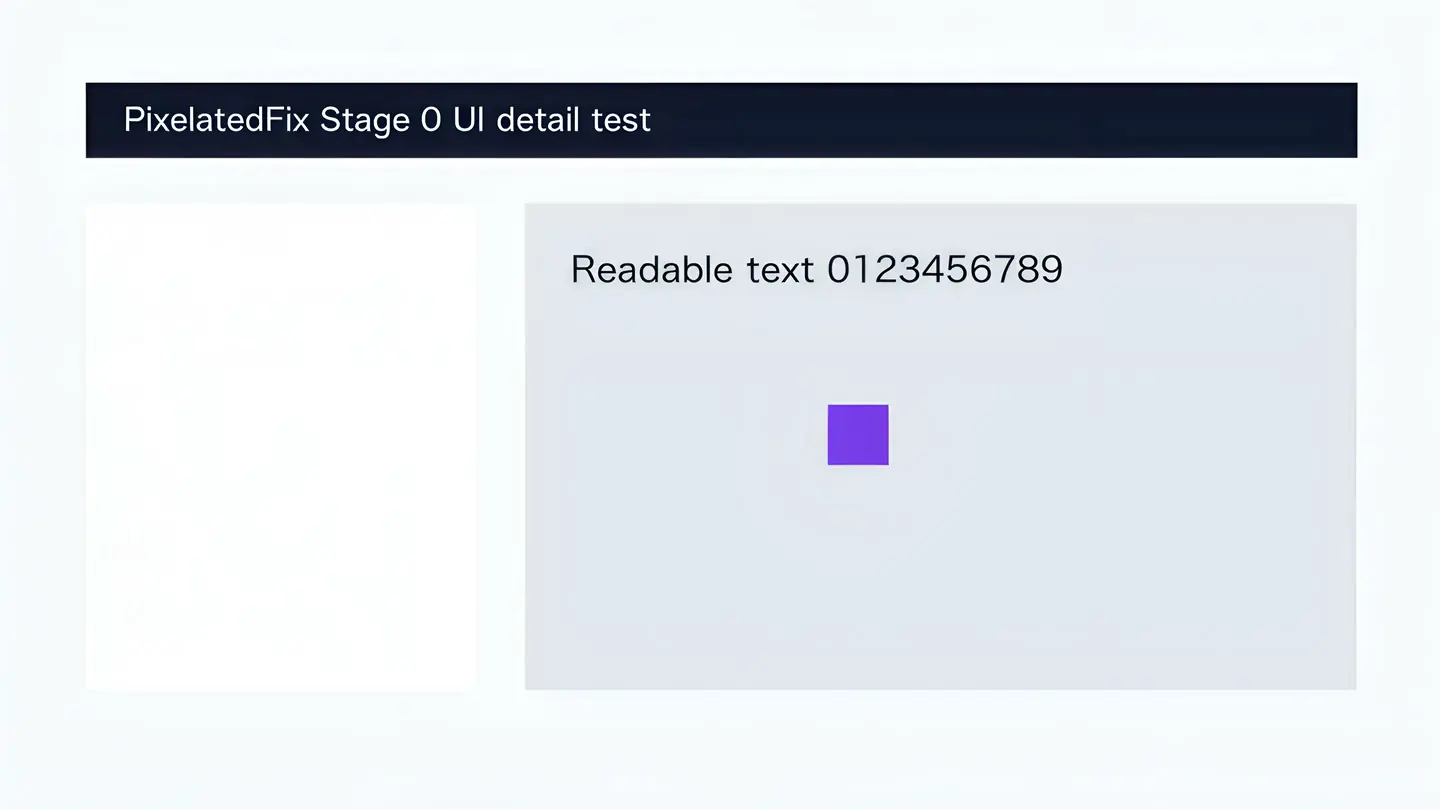
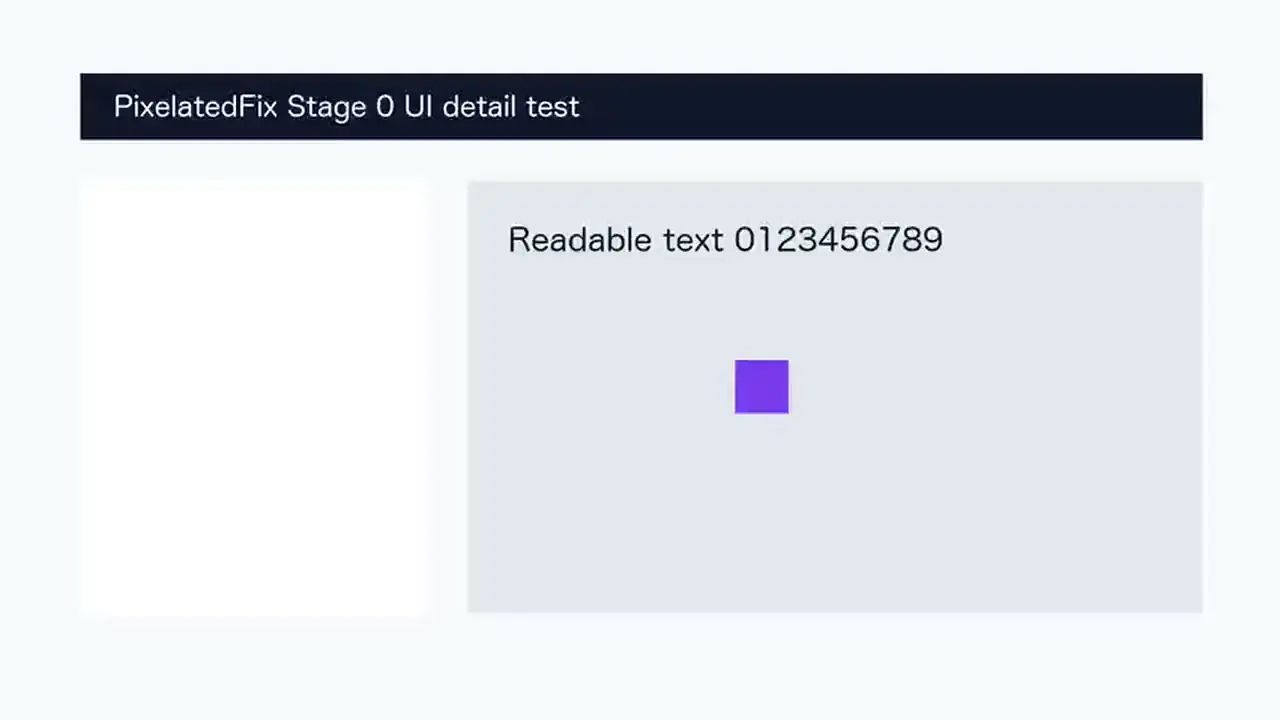
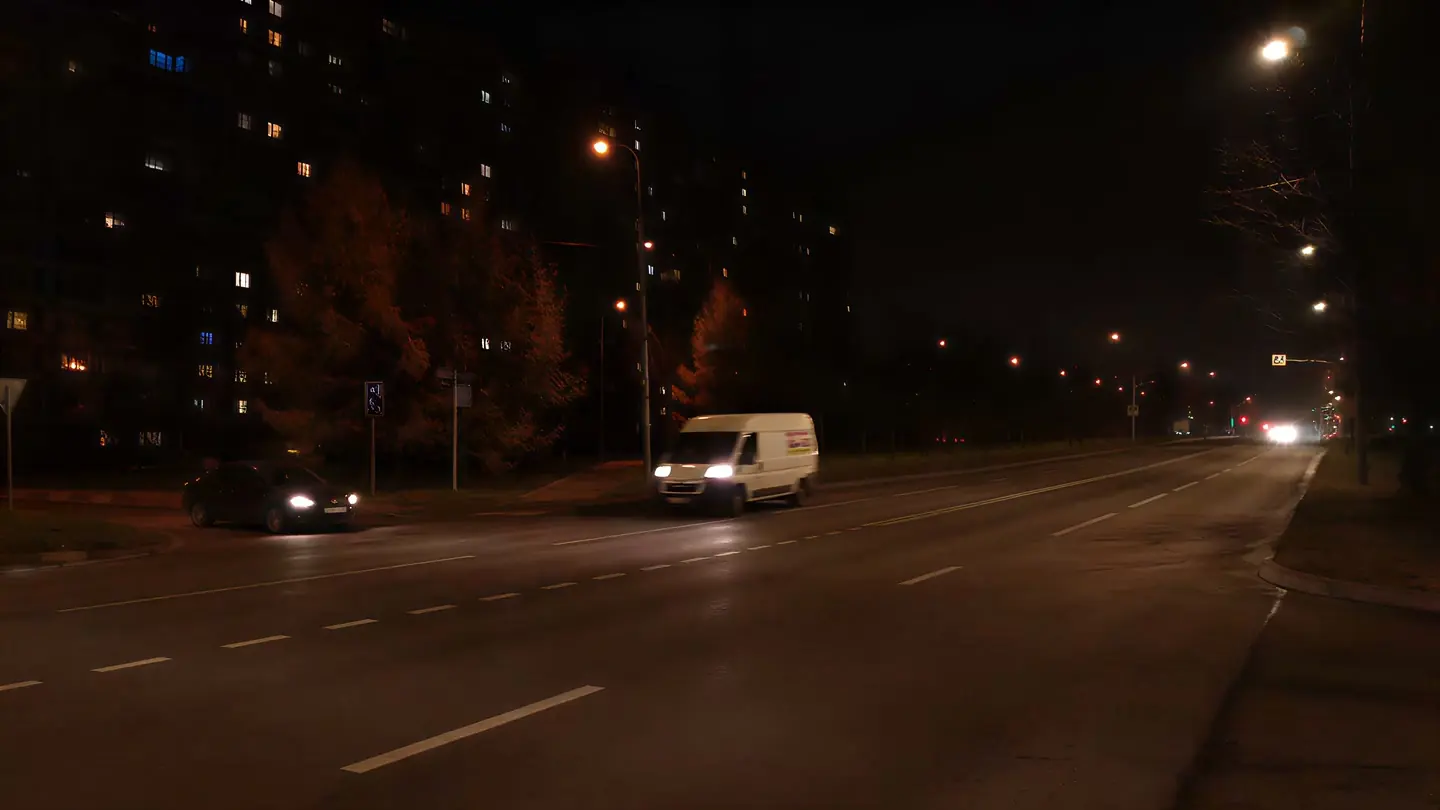
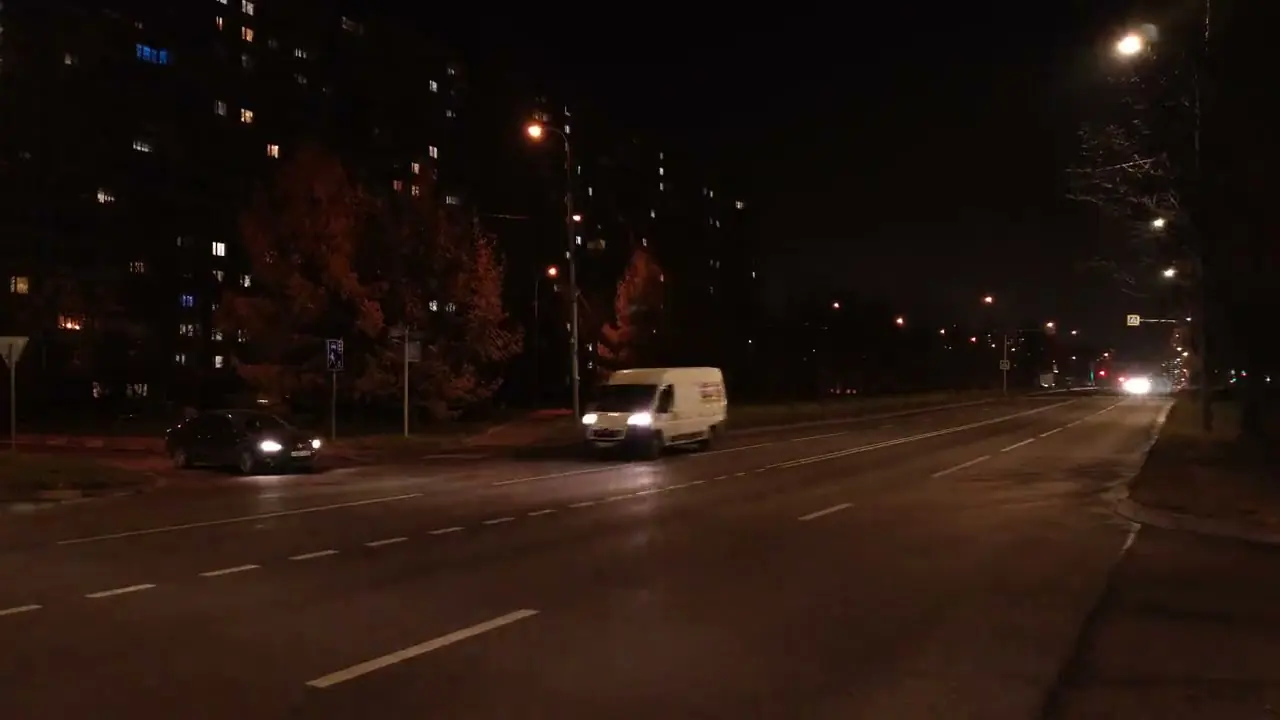
2× detail view
Before · 720p
After · 4K
Verified 1280 × 720 to 3840 × 2160 · drag to compare
01
Upload the best available source
Choose the original or earliest export rather than a messaging download. Better input video gives the enhancer more useful detail to work with.
02
Select an output resolution
Use 1080p for most web video. Choose 2K or 4K when your editing project, display, or upload needs the larger size.
03
Review the price before payment
The exact one-time total uses the rounded-up video length and selected 1080p, 2K, or 4K output.
Keep resolution, aspect ratio, and frame rate separate
These settings describe different parts of the video. Changing all three at once can create a larger file with stretched images or uneven motion.
01
Resolution
Width × height describes the number of output pixels. Common landscape targets include 1920 × 1080 and 3840 × 2160, with corresponding portrait dimensions for vertical sources.
02
Aspect ratio
The proportional shape of the frame should stay the same unless you intentionally crop, pad, or reframe it. PixelatedFix preserves the original shape.
03
Frame rate
Frames per second controls motion, not image resolution. PixelatedFix keeps the source timing instead of creating duplicate frames.
HONEST LIMITS
A resolution label is not a quality guarantee
1920 × 1080 or 3840 × 2160 describes the output frame size. The real matched Before and After examples show what to inspect in a larger version.
01
Works best for
Readable low-resolution footage, moderate compression, stable motion, and a clear need for 1080p, 2K, or 4K.
02
Check carefully
Tiny UI text, fast motion, low-light faces, dense grain, ringing, or footage that has passed through several social-platform encodes.
03
Does not provide
Aspect-ratio reframing, frame-rate conversion, damaged-file repair, or exact recovery of detail missing from the uploaded video.
SIMPLE ONE-TIME PRICING
See the video resolution price before checkout
Video length and output resolution determine the exact one-time price. The local video check is free, and the full total appears before checkout.
Practical answers about 1080p conversion, MP4 files, aspect ratio, frame rate, audio, and what a larger output can improve.
Can I convert a video to 1920 × 1080?
Yes for accepted videos. Choose 1080p when it is larger than the source and matches where you plan to use the finished video.
Can I change MP4 video resolution online?
Yes. Upload an MP4 that plays correctly and choose 1080p, 2K, or 4K when available.
Will changing resolution stretch my video?
No. PixelatedFix preserves the original aspect ratio. Cropping a landscape video into a vertical shape requires a video editor.
Does a higher resolution always mean better quality?
No. A larger frame can expose blur, noise, blocks, or invented texture. Source bitrate, compression history, focus, motion, and final encoding matter as much as pixel dimensions.
Will the converter keep audio and timing?
Accepted files keep their main audio track and original timing. Files we cannot process are stopped before payment.
TRY YOUR OWN VIDEO
Choose the smallest video resolution you need
Choose the original video and inspect its resolution. Move to 2K or 4K only when the larger output is useful for your destination.