Use an AI video enhancer, also called a video quality enhancer, for blurry, grainy, compressed, or low-resolution footage with 1080p, 2K, and 4K output.
Full-video outputs1080p·2K·4KAvailable options depend on your source
Check your video free No signup to check Full video uploads only if you continue
REAL VIDEO ENHANCEMENT
Compare low light, 4K upscaling, and small text
These real five-second examples cover three common quality problems. The timing and crop stay the same so you can judge visible changes fairly.
CASE 01
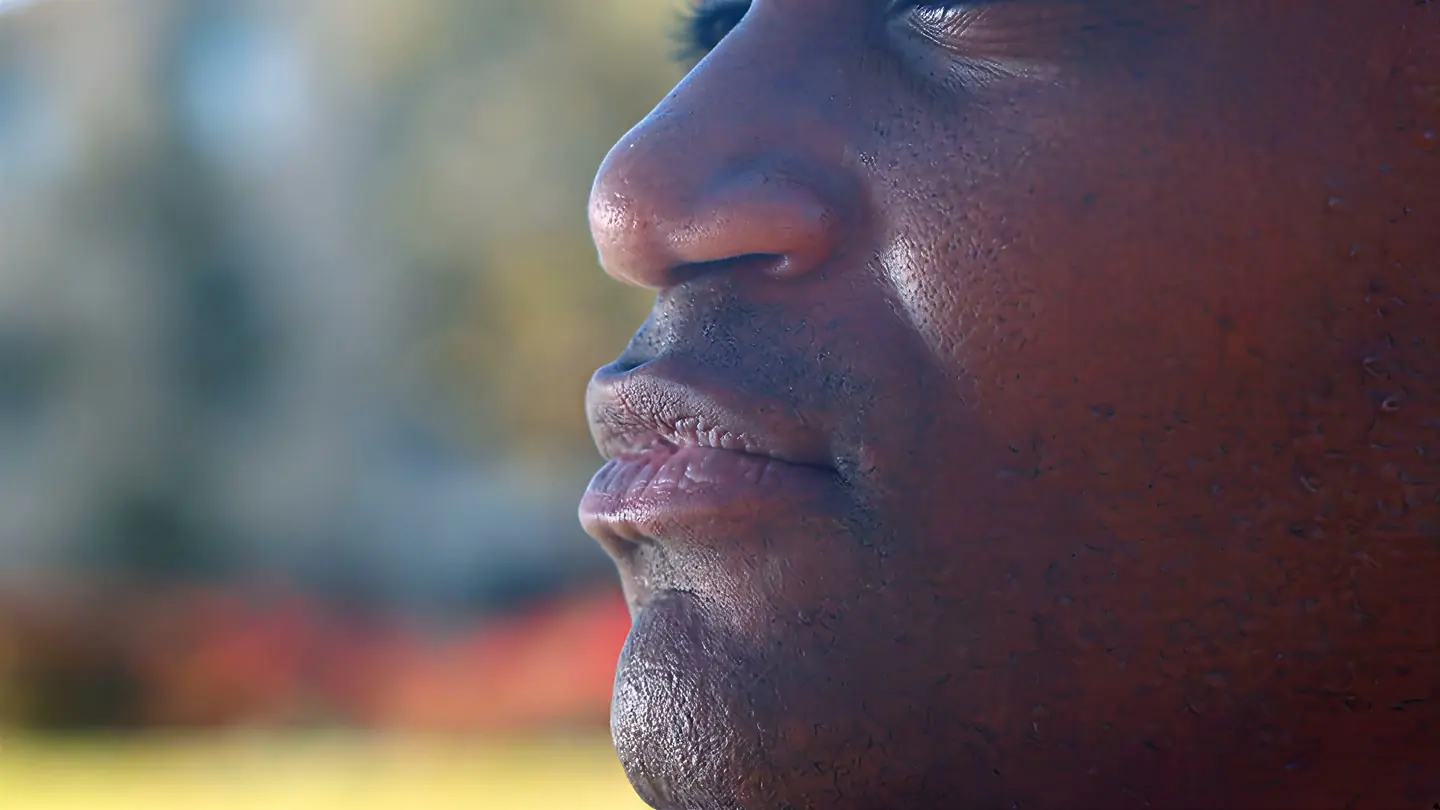
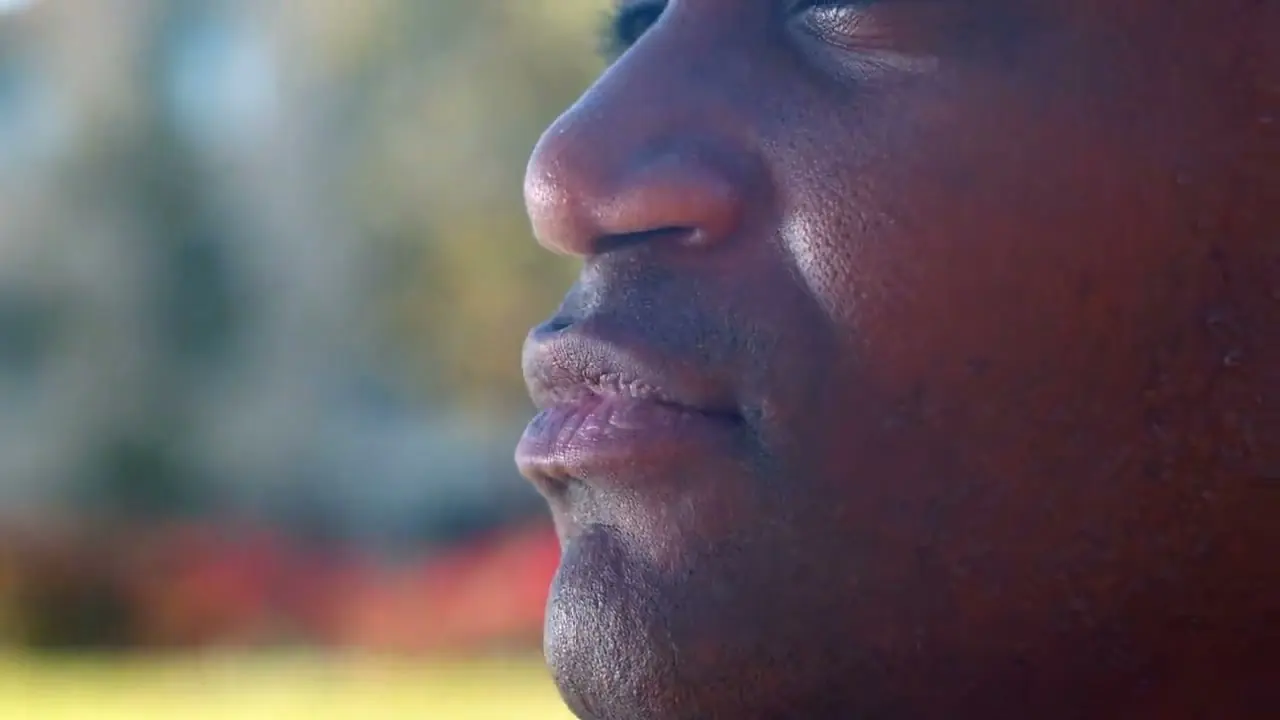
Real portrait: compressed 720p to Pro 4K
A real outdoor close-up enhanced to 4K with Pro Quality. Inspect skin texture, facial edges, eyelashes, and the softly focused background.
Before
1280 × 720
After
3840 × 2160
Quality
Pro Quality · 4K
Look at
Skin texture, facial edges, and eyelashes
Verified Pro Quality result · Same five-second input · Processing record checked
Web playback rendition derived from the verified Pro 4K output. Review focus: Petals, leaf edges, and texture.
Source: Flower · MDN interactive examples · CC0
DIRECT ANSWER
How does an AI video enhancer improve quality?
An AI video enhancer, also called an AI video quality enhancer, can reduce compression blocks and noise, make edges clearer, and upscale low-resolution video. If you are looking for a free AI video enhancer, the PixelatedFix length-and-resolution check is free; full enhancement is paid. To fix blur in video with AI online, first separate mild softness from missed focus or motion blur. Review the real 4K Before and After examples before paying.
Reviewed by PixelatedFix · Updated July 26, 2026
Enhances
Compression, softness, noise, and scale
Does not edit
No trimming, captions, or scene generation
Free check
Length and resolution stay on device
Finished video
1080p, 2K, or 4K with main audio
MATCH THE MODE TO THE PROBLEM
What can a video enhancer improve?
Video enhancement works best when you identify the main problem first. Check the matching area in the real Before and After examples.
01
Blocky compression
Look for fewer square blocks during motion without waxy faces or smeared texture. If the original project exists, try a higher-quality export first.
02
Low-resolution softness
A moderate upscale can make edges cleaner on a larger screen. Check text and diagonal lines for bright halos or an over-sharpened look.
03
Noise and dark-scene grain
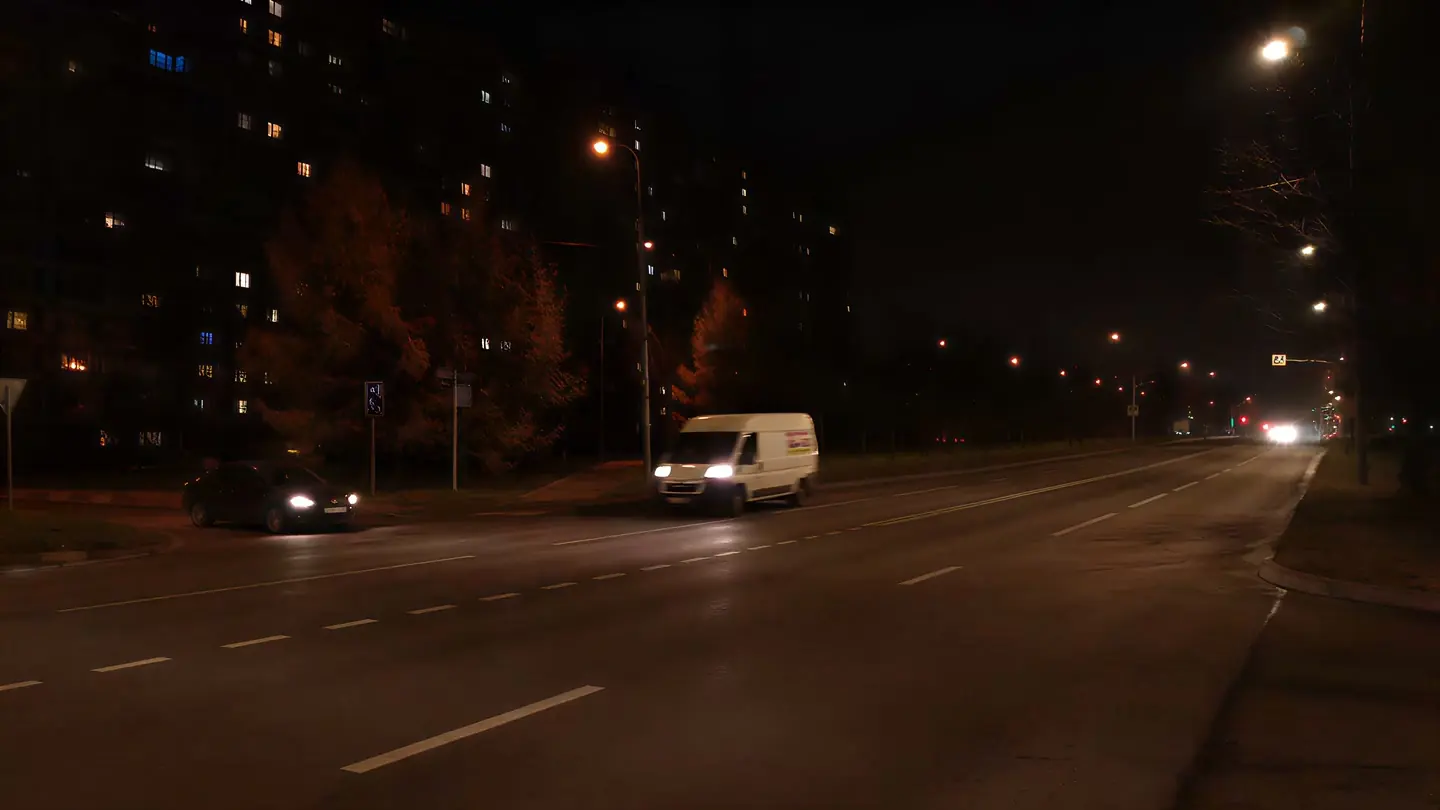
Noise reduction can make shadow detail easier to read, but strong settings may erase skin, hair, or film texture. Motion comparison matters more than a still.
04
Several problems together
Messaging downloads and old social clips may be small, noisy, and repeatedly compressed. The matched examples show why balanced enhancement can look better than heavy sharpening.
QUICK DIAGNOSIS
Separate blur, noise, compression, and low resolution
“Low quality” is not one defect. Identify the dominant symptom first so the selected enhancement addresses a change that can actually help.
What you see
Likely cause
Best next step
Tool fit
Blocky edges and muddy motion
Repeated compression
Reduce blocks before upscaling
Strong fit
Soft but stable image
Low capture or export resolution
Enhance edges and scale to 1080p
Good fit
Grain across dark faces
Low light or high ISO
Compare grain reduction with facial detail
Check examples
Out-of-focus subject
Optical blur at capture
Use the original or reshoot if possible
Limited fit
PREVIEW FIRST
How to enhance video quality online
Use the real matched Before and After examples to identify the details that matter. A useful enhancement should make important edges and texture look cleaner, not simply make the frame larger.
2× detail view
Before · 720p
After · 4K
Verified 1280 × 720 to 3840 × 2160 · drag to compare
01
Upload the best available file
Use the original export rather than a messaging or social download when possible. MP4, MOV, M4V, WebM, and MKV files can be up to five minutes and 1GB.
02
Choose the finished resolution
Select 1080p, 2K, or 4K based on the source and where you will use the result.
03
Review the full-video price
Select 1080p, 2K, or 4K, see the exact duration-based one-time price, and continue only when the total is acceptable.
Use a video enhancer for picture quality problems. Other editing and file-repair tasks need a different tool.
01
Not a general editor
The product does not cut scenes, generate captions, change aspect ratio, remove backgrounds, or create new footage.
02
Not exact recovery
AI can estimate cleaner-looking edges and texture, but it cannot prove what was missing from the original video.
03
Not damaged-file repair
Videos that will not play, have missing frames, or are severely damaged need file recovery or a fresh export.
HONEST LIMITS
AI video enhancement has visible limits
Noise reduction, edge cleanup, and upscaling can help one video while making another look waxy or over-sharpened. Check faces, texture, text, and motion in the real examples.
01
Usually improves
Moderate compression, low-resolution softness, screen recordings, and clips where edges and subjects are still recognizable.
02
Check carefully
Low-light faces, fine hair, rapid motion, film grain, subtitles, and small interface text.
03
Outside the product
Audio cleanup, dead-pixel repair, video generation, downloading from third-party platforms, and full timeline editing.
SIMPLE ONE-TIME PRICING
See the complete enhancement price before payment
Your exact one-time price depends on video length and output resolution. There is no subscription, and you receive a full refund if we cannot deliver the finished video.
Answers about blur, noise, compression, accepted files, audio, data deletion, and what AI enhancement can improve.
Is an AI video enhancer the same as an upscaler?
An upscaler mainly increases resolution. A video enhancer may also reduce blocky compression, soften noise, and clarify edges before enlarging the video.
How should I compare the best AI video enhancer tools?
Use the same moving clip, timing, crop, and output size. Compare faces, text, fine texture, flicker, audio, price, privacy, and whether the finished file is actually playable.
Can enhancement make blurry video clear?
It may improve mild softness or low-resolution blur. Strong optical defocus and motion blur cannot be reliably reversed, so review the real examples and keep the original.
Is the first video check free?
Yes. PixelatedFix reads length and resolution on your device before the full upload. The paid enhancement starts only after checkout succeeds.
Do I need to create an account?
No account is required to check video length and resolution on your device. Sign-in is required before the full upload, exact quote, payment, or returning to previous orders later.
What happens if you cannot deliver the full video?
You receive an automatic full refund when PixelatedFix cannot deliver a finished, playable video.
TRY YOUR OWN VIDEO
Choose the source with the most useful detail
Use motion, a face, dark texture, or small text from your video. A difficult scene makes the result easier to judge.